Enterprise Edition Login
New users must first create a login password. Once a password has been created, they are taken to the Groups and Batches page. After this first-time login use the Normal Login procedure.
 First Time Login
- New users receive an email from the administrator which asks them to confirm their email address.
Note: User accounts with no registered email address must be supplied with a password by the administrator.
- Click on the link in the email which takes you to the Create a new password page in your default Web Browser.
- Create a password and confirm the password.
- Click on Confirm.
Note: As you enter a new password the criteria for a new password tells you if the new password is acceptable.
You are taken to the Groups and Batches page. Save this page as a Favorite / Bookmark.
Normal Login
- Double-click on
 (or right-click and select Open).
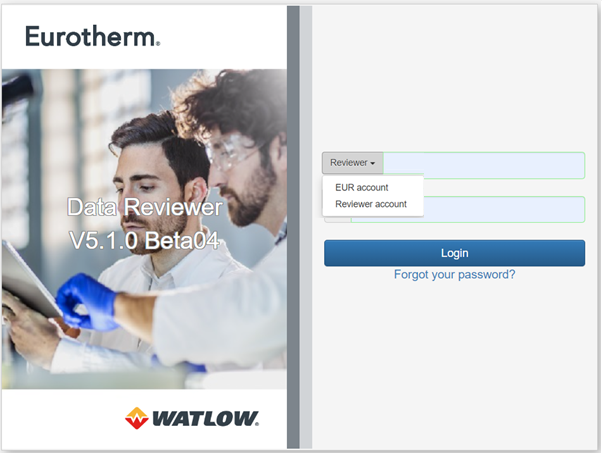
The Data Reviewer will open in your default browser on the Groups and Batches page. Once opened the application can be saved as a bookmark (Favorite / Bookmark). - Enter your user name and password.
If an Active Directory (AD) has been configured, from the drop-down select the AD or the local sign-in.
Note: AD users must log in with their AD username and password.
- Click on Login

 Unsuccessful Login Attempts
After a set number of login attempts have been unsuccessful, a user will be locked-out of their user account and the message Login unsuccessful. Please check your credentials shows. A locked user account can be either:
- A timed lockout: The user has been locked-out of their user account for a set amount of time, after which the user can log in again.
- An administrator unlock required: The user is locked-out of their user account and only an administrator can unlock the user account. The user is sent an email, which asks that they contact their administrator to request user account access.
Note: User Accounts with no email address: The user must contact their Data Reviewer administrator to request that their account is unlocked.
Note: When you enter a password on a web page, it offers by default to save your login credentials. As this feature may cause a security risk, ensure not to save your Data Reviewer passwords (both Initial login and Signature and authorization login) by clicking the Never option.
Note: It is possible to log in from more than one location, at the same time, with a single user ID and password combination.
Note: When successfully logged in, your last log in date and time, and any unsuccessful log in attempts, are briefly shown at the bottom of the page. Make sure you confirm this information is correct. If you do not recognize the last log in, change your password.