Downloading Diagnostic Logs
The Diagnostic Logs feature lets you download service and debug files for troubleshooting. After downloading, save the log and share it with support. If support has already contacted you, reply to the existing email and attach the file. Otherwise, email it to your local Watlow representative with a brief description of the issue.
To download Diagnostic logs:
-
From the EPM User Interface screen, select Options
 - Maintenance - Diagnostic Logs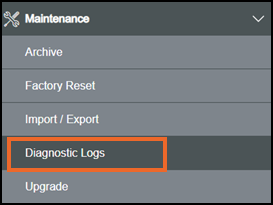
-
The Diagnostic Logs screen displays:

-
Complete as required:
-
Selected target - Displays the current download selection. It shows the destination chosen in Download target and the content chosen in Download item. This field updates automatically when the user changes either selection:
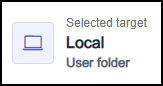
-
Download target - Allows you to choose where the diagnostic files are saved:
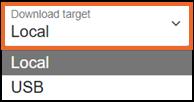
-
Local - Saves the selected diagnostic files to the local destination on the device. When Local is selected in Download target, the Selected target area updates to show the local destination details.
-
USB - Ensure your USB flash drive is connected. When USB is selected in Download target, the Selected target area updates to show the USB destination details.
Note - When USB is selected as the download target, only the User Folder is available to save diagnostic files.
-
-
Download Item - Allows the user to choose which diagnostic content to download:

-
Active log - Downloads the current debug log.
-
All logs - Downloads all available debug log files together.
-
User folder - Downloads the user folder as a TAR archive.
-
-
-
Select Download to start the download process.
Note - If FTP and HMI access are unavailable, copy an empty file named user_export_flag.txt to the USB flash drive and restart the device. On restart, the system detects the file and generates user-folder.tar on the USB flash drive containing the exported user data, provided sufficient storage space is available.Last update - July 2026