How do I enter special characters?
To enter a language specific character or an engineering unit, for example, â in a free text section or °C in a General Settings section:
From the EPM Device
 Language Specific Characters
To access language specific letters, for example, é, â, ä and ß:
-
Select the language required for your device from select Options
 - Settings and Users - Settings - Internationalization.See Configuring Internationalization for details.
 -
When the onscreen keyboard displays, select and hold the relevant character to display additional options for selection.
Engineering UnitsTo access engineering unit characters:
- Place the cursor where you want to insert a special character or symbol.
- When the keyboard displays, press &123
 to switch to numeric mode, then press the next button (highlighted) to access special characters: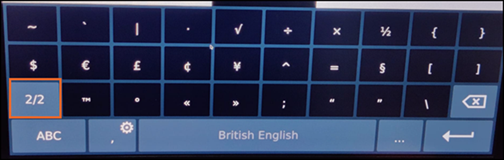
Using a PC (Web Client)
Using Keyboard Shortcuts
- Place the cursor where you want to insert a special character or symbol.
-
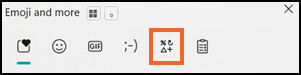
Press Windows key and . (period) or Windows key and ; (semicolon), the Emoji picker screen displays.
-
Select the Symbols icon:
-
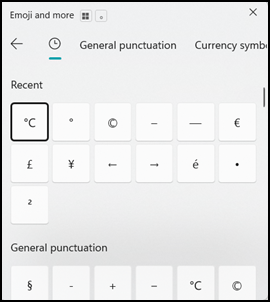
Select the required special character or symbol:
or
From your keyboard, hold down the Alt key and type the numeric code on the keypad to insert the symbol:
Common Symbols
| Symbol | Alt Code | Description |
|---|---|---|
| © | Alt + 0169 | Copyright |
| ® | Alt + 0174 | Registered Trademark |
| ™ | Alt + 0153 | Trademark |
| ° | Alt + 0176 | Degree |
| ± | Alt + 0177 | Plus-Minus |
Currency Symbols
| Symbol | Alt Code | Description |
|---|---|---|
| £ | Alt + 0163 | Pound Sterling |
| € | Alt + 0128 | Euro |
| ¥ | Alt + 0165 | Yen |
| ¢ | Alt + 0162 | Cent |
| $ | Alt + 0036 | Dollar |
Math & Logic Symbols
| Symbol | Alt Code | Description |
|---|---|---|
| ÷ | Alt + 0247 | Division |
| × | Alt + 0215 | Multiplication |
| √ | Alt + 251 | Square Root |
| ≠ | Alt + 8800 | Not Equal |
| ≈ | Alt + 8776 | Approximately Equal |
Using Character Map Tool
The Character Map can be accessed in the following ways:
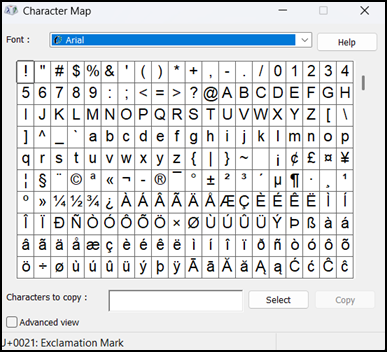
Search Command:
- Enter 'Character Map' in the Windows Search bar and press Enter on your keyboard.
- Select the special character or symbol required and then choose Select
 .
. - Select Copy
 .
. - Place your cursor where you want the character and, using <Ctrl + V> on your keyboard, paste the character.
Using Run Command:
- From your keyboard, press <Windows + R> and Opendisplays.
- Enter ' charmap' and then press <Enter>.
- Select the special character or symbol required and then choose Select .
- Select Copy .
- Place your cursor where you want the character and, using <Ctrl + V> on your keyboard, paste the character.
Last update - March