Configuration Lock
The Configuration lock functionality ensures that only one person at a time can make changes to the setup of your device.
As soon as you start to update any part of your configuration, the Configuration lock displays
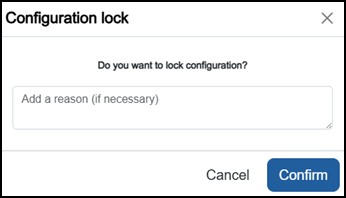
Optional, in Add a reason, enter the reason for the configuration lock being triggered, this can help inform other users of the device what action is being taken.
Select Confirm  to continue and claim the Configuration lock.
Once the Configuration lock is claimed, Configuration Locked  displays on the status bar for all users and configuration changes can now only be made by that user, until they either:
-
Submit their changes, see Reviewing and Submitting Changes for details, or
-
Release the lock without confirming any changes having reverted all proposed/draft changes to their original values, see Releasing a Configuration Lock for details.
Releasing a Configuration Lock
To release a Configuration lock with no impact:
-
From the status bar, select Configuration Locked
. -
The Configuration Lock screen displays:
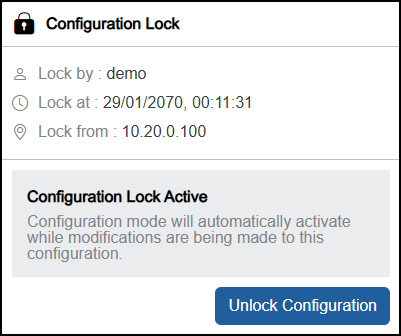
Select Unlock Configuration
 .
.
The configuration is released.
is not available once Review pending change(s)  displays. For details on reverting these changes, see Reverting Changes.
Last Update - July 26