Reviewing and Submitting Changes
Any changes made to a configuration within your system are automatically passed to the Review Pending Changes screen. This allows you to review all pending changes and then either collectively submit or revert them as required.
When you are ready to review and submit configuration changes:
-
From any EPM User Interface screen, select Review pending change(s)
 from the top right-hand corner.
 -
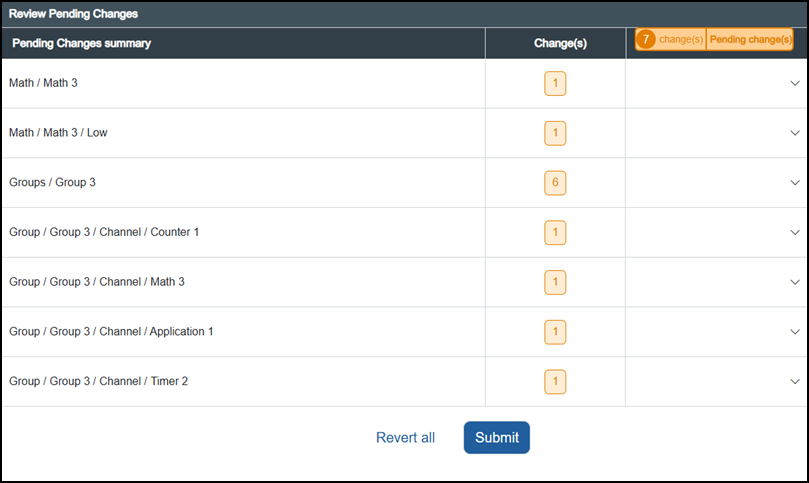
The Pending Changes summary screen displays, listing all the pending configuration updates:
-
For each change, select Expand
 and review it carefully, select each item to display the details:
Under the Change(s) column, each line displays the number of changes and the following flags:
Note - There is no undo option on Revert or Revert All
  .Tip - It is important that you review each change carefully.
-
Added
 - Indicates this item is new to the configuration, select Revert to remove the addition.
 -
Modified
 - Indicates this item is an update to an existing aspect of the configuration, select From edit
  to open the relevant screen, review it and change or remove the update if necessary.
 -
Deleted
 - Indicates this item is being removed from the current configuration, select Revert to leave the item in place.
 -
Select either:
-
Submit
 to submit your changes.
NOTICE RISK OF DATA LOSS OR CORRUPTION
Pause or stop processes you are recording before applying a configuration
Failure to follow this instruction can result in data loss
Note - Data is not recorded during the submission of a configuration update.Or
-
Revert all
to undo all of the changes made and return to your previous screen.
-
-
-
If you have selected Submit
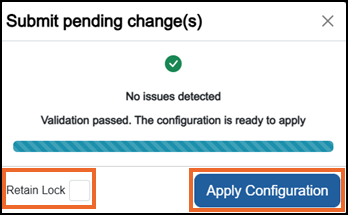
, the Submit pending change(s) screen displays:Tip - If you want to retain the lock after applying this configuration update, tick Retain Lock. -
Optional, if your organization is 21 CFR Part 11 compliant the Sign and authorize changes screen displays. Complete as required.
See FDA 21 CFR Part 11 for details. -
Validation automatically runs and one of the following displays:
Select from the following options to expand the details:
 No validation issues
If there are no validation issues identified, the No issues detected screen displays. Select Apply Configuration
 to apply the configuration:
 Non-critical issues
If any non-critical issues are identified, an orange triangle
 displays on the Pending change(s) notification
  and the Review Warnings options display on the Submit pending change(s) screen: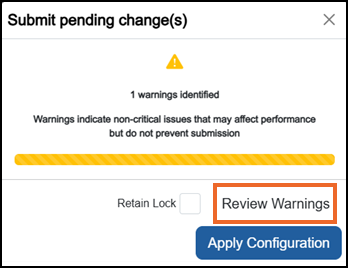
Select Review Warnings from the Submit pending change(s) screen, or select the orange triangle
to display the Review issues 'n' screen, where 'n' is the number of issues. Select Expand  to display the details of an issue and then Go to edit to address each identified issue:Note - Non-critical issues can be ignored but it is not good practice to address them before submitting a configuration update.
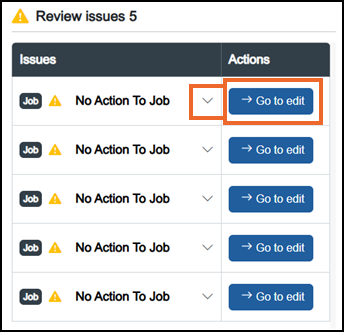 Critical issues
If any critical issues are identified, a red octagon
 displays and Pending change(s) updates to Review pending change(s)
  . The Review Issues option displays on the Submit pending change(s) screen, select to address any issues:Note - Critical issues must be addressed before a configuration can be submitted successfully.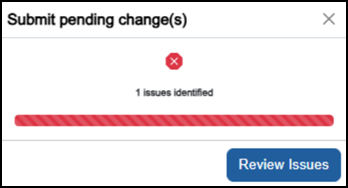
Once any issues are addressed, select Review pending change(s)
and select return to step 4 above and select Submit to continue.Tip - Please be aware, this list does not update in real time. To see an updated list, from the Review pending change(s) screen, you must select Submit. -
The Submit pending change(s) screen displays, with the configuration version being applied:
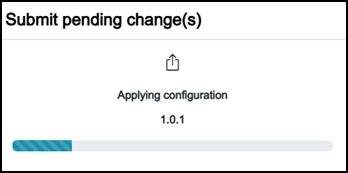
While the changes to the configuration are made, the Submit pending change(s) screen message displays on all connected devices. Once complete, select OK
 to close and return to the screen you selected Review pending change(s) from: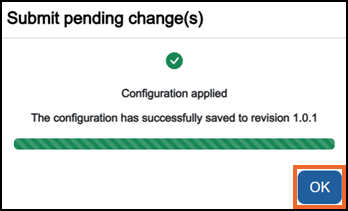
Last Update - July 26