Filtering the Alarm Summary Screen
To change the alarm status filter on the Alarm Summary screen:
-
If you navigate to the Alarm Summary screen from Options
 - Alarms - Alarm Summary, the All
  initial filter and the All alarms
 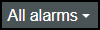 secondary filter displaying all active and unacknowledged alarms.
-
If you access the Alarm Summary screen by selecting an alarm symbol from the EPM User Interface, for example, from the Status Bar or a Group card, Alarm Summary displays with the appropriate filter applied.
-
From the Alarm Summary screen, select the initial filter:
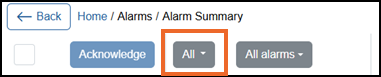 Tip - The label on the filter depends on how you accessed this screen.
 -
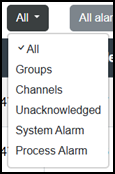
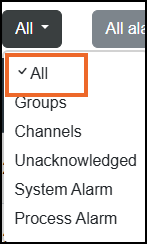
Select the filter you require:
-
All - Selected by default, displays all active and unacknowledged alarms.
-
Groups - Displays all alarms for all Groups.
-
Channels - Displays all alarms for all channels.
-
Unacknowledged - Displays all unacknowledged alarms.
-
System Alarms - Displays all System Alarms.
-
Process Alarms - Displays all Process Alarms.
Tip - The filter selected is preceded by a Tick .
.
-
-
The secondary filter now updates offering you further options depending on your initial filter choice, for example, , if you select Channel in the initial filter, you can filter your channels, if you select Groups, you can filter on your Groups. All available display by default, add and remove Ticks
 as required:
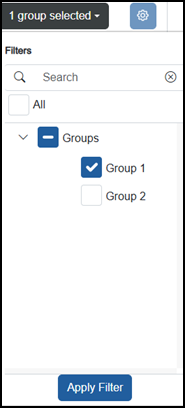 Tip - Select Expand
 to open a section and Collapse
  to close it.
 -
Select Apply Filter
 to update the screen. The initial filter displays the filter selected, the secondary filter displays the number of items.
Clearing Alarm Filters
To clear Filters from the Alarm Summary screen:
From the initial filter, select All:
Last update - June 2026