Running Factory Reset
Running Factory Reset on your EPM Data Management device, returns the device to its initial state. We strongly recommend using this functionality when decommissioning a device to ensure all your data is removed.
To run Factory Reset from your EPM device:
-
From the EPM User Interface screen, select Options
 - Maintenance - Factory Reset: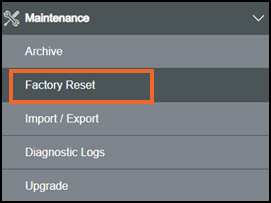
-
The Factory reset screen displays, select Proceed:
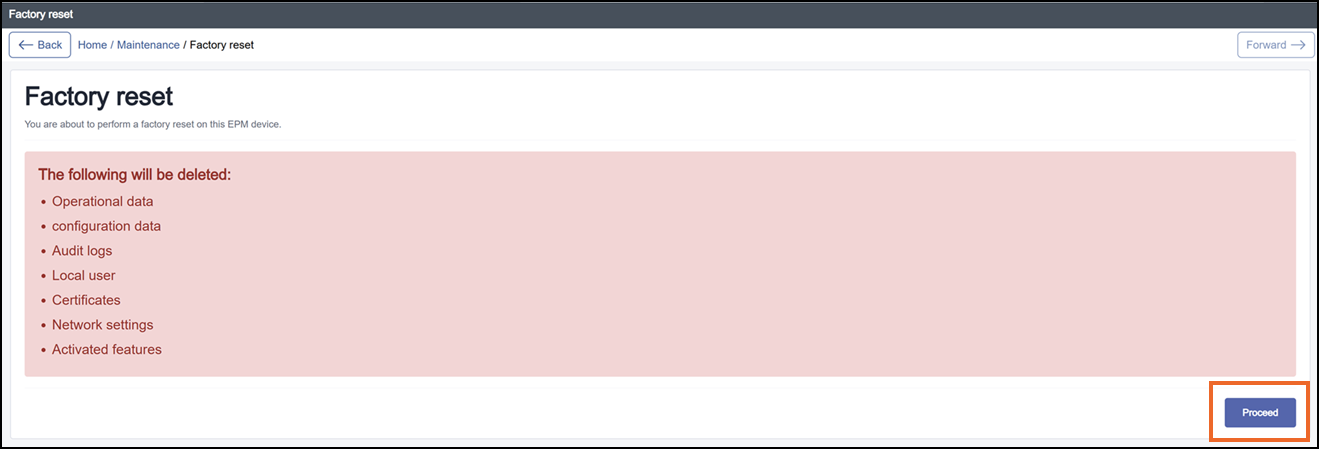
-
The 'I accept full responsibility' message displays:
NOTICE RISK OF DATA LOSS OR CORRUPTION
Running Factory Reset deletes all recorded data, configurations and users.
Failure to follow this instruction can result in data loss
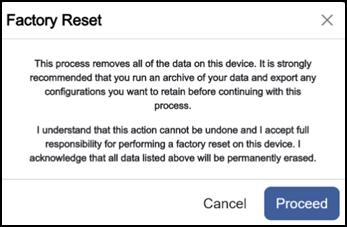
Read this carefully and then select either:
-
Cancel - To abandon the reset, or
-
Proceed - To continue and reset the device to factory settings.
-
-
Once you are happy any recorded data is archived, and configurations and users have been exported, select Proceed to continue.
-
The Reauthenticate to confirm reset screen displays, enter your password to confirm your identity and authorization to reset the device.
-
Select either:
-
Reset device to restore your device to factory settings.
-
Cancel to abandon the reset and retain your data.
-
The Factory Reset in Progress screen displays, once the progress bar completes, the device restarts automatically.
If there are any active remote sessions, they are terminated and the Session termination screen displays to notify the users:
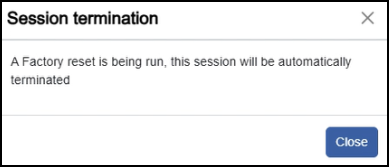
Last update - July 2026