Importing and Exporting EPM Configurations
If you have multiple unconnected EPM devices, the EPM User Interface allows you to configure one device and then share that configuration across other devices.
Once an initial device is configured, see Initial Power Up for details, sharing it's configuration is a two part process:
-
Exporting the configuration from your configured device, see Exporting a Configuration for details.
-
Importing the configuration on to an other device, see Importing a Configuration for details.
Exporting a Configuration
To export a configuration via USB C device:
-
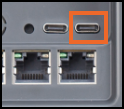
On the device you are exporting from, insert a USB C flash drive into the right-hand side USB C socket on the rear of the device:
-
From the EPM User Interface screen, select Options
 - Maintenance - Import / Export: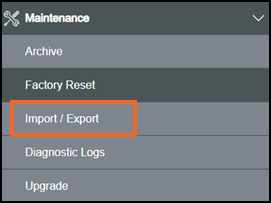
-
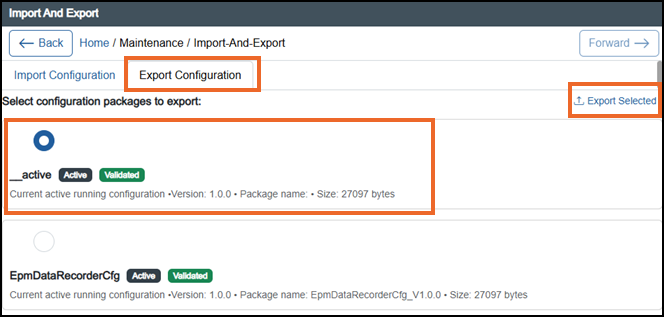
The Import And Export screen displays, select the Export Configuration tab:
-
Select the configuration package to export by selecting the radio button next to it:
 Note - You can only select one configuration at a time to export.Tip - Configuration packages create automatically when you select Submit from the Review Pending Changes screen, see Reviewing and Submitting Changes for details.
 -
Select Export Selected
 .
.
A The selected package successfully exported to USB message briefly displays and the files are exported to the USB C flash drive:

If there is an issue with the export an Export unsuccessful: Something went wrong. Please make sure your USB device is properly connected message displays, please check the USB C flash drive is inserted properly and try again.
Importing a Configuration
Importing a Configuration (6:06)
To import a configuration from a USB C flash drive:
-
From the EPM Data Management device you want to copy the configuration to, insert the USB C into the right-hand side USB C socket:
-
From the EPM User Interface screen, select Options
- Maintenance - Import / Export:
-
The Import And Export screen displays, select the Import Configuration tab:
Note - If no USB C flash drive is inserted, the No configuration packages available for import message displays.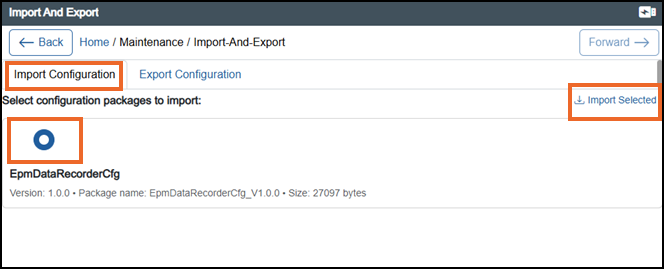
-
Select the configuration package to import by selecting the radio button next to it:
-
Select Import Selected
 .
. -
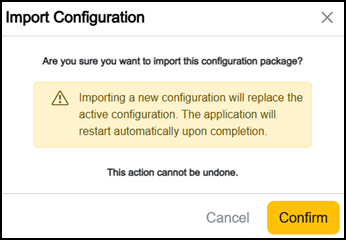
The Import Configuration screen displays, select:
-
Confirm to continue with the import, or
-
Cancel to return to the Import and Export screen:
-
-
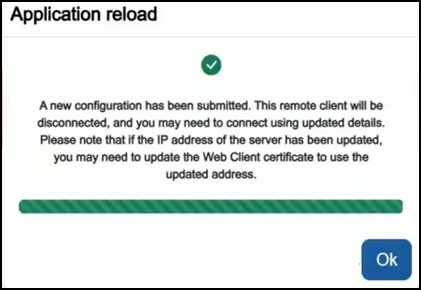
The Application reload screen displays, select Ok:
If there is an issue with the import an Import unsuccessful: Something went wrong. Please make sure your USB device is properly connected message displays, please check the USB C flash drive is inserted properly and try again.
Last update - July 2026