Sorting and Filtering Batch Configurations
By default, the Batch Configuration screen displays all batch configurations available, in order of creation with the oldest at the top.
To find a Batch Configuration:
-
From the EPM User Interface screen, select Options
 - Batch - Batch Configuration: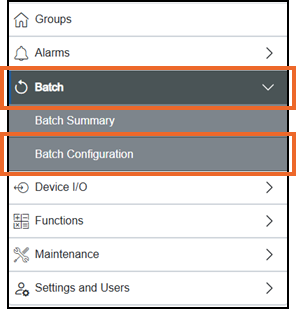
-
Select Sort to sort the Batch Configurations:
Sort
 displays with dark gray text when a Sort is unavailable.
Sort
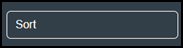 displays in dark gray when a Sort is available.
Sort
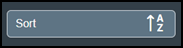 displays in light gray when a Sort is active with the selected order.
Filtering Batch Configurations
To filter Batch Configuration:
-
From the EPM User Interface screen, select Options
- Batch - Batch Configuration:
-
The Batch Configuration screen displays, from the left-hand side, select Filters:
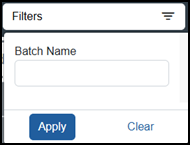
-
In Batch Name, enter the name of the Batch Configuration required and select Apply
 to apply the selected filter(s).Tip - If you navigate away from this screen and then return to it, the selected filter is retained until you select Clear or log out.
Clearing Filters
To clear filters applied and display all Batch Configurations:
-
From the Batch Configuration screen, from the left-hand side, select Filters.
-
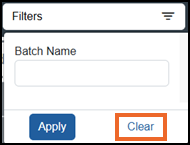
Select Clear
 :
:
All Filters are now cleared.
Last update - June 2026