Configuring General Settings
General Settings allows you to select or customize system-wide default settings for the device, such as default units, decimal places, batch fields, device name behavior, rounding, and other general configuration preferences that control how new settings and values are applied across the system.
To configure the general settings:
-
From the EPM User Interface screen, select Options
 - Settings and Users - Settings: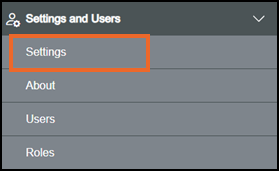
-
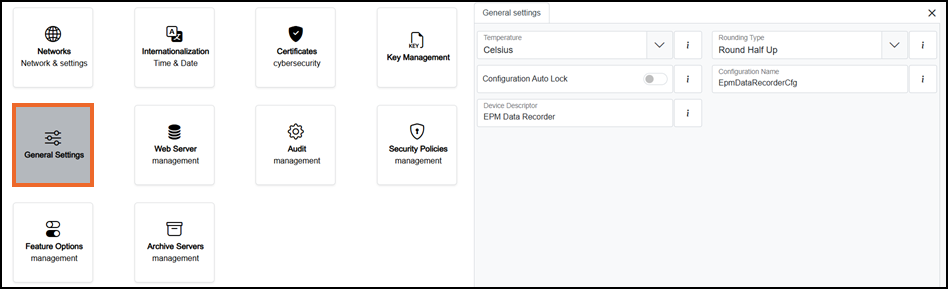
The Settings screen displays, select General Settings which then displays on the right-hand side of the screen:
-
If you are not already in Configuration lock, the Configuration lock screen displays
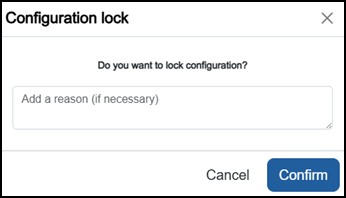
Enter a reason if required and then select Confirm
 . The system configuration is now locked pending the submission of your update and the Configuration Locked
  icon displays on the status bar.Note - Configuration lock does not affect the operation of the EPM device.See Configuration Lock for details.
 -
Complete as required:
-
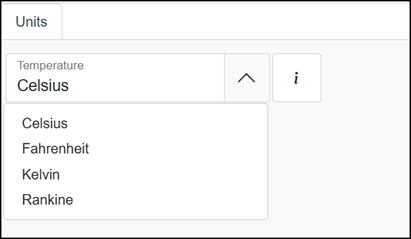
Temperature - Select the unit of measurement from the available list. Selected unit is used as the default temperature unit for newly created configurations or channels:
-
Rounding Type - Select the rounding type from the available list:
-
Round Half up - Numbers with a fractional part of exactly 0.5 are always rounded up to the next number.
-
ASTM E29 - American Society for Testing and Materials (ASTM) E29 specifies that when rounding numbers, particularly those ending in 0.5, the number is rounded towards the nearest even number to avoid bias in data reporting. For example, 2.345 rounds to 2.34 (5 preceded by an even digit) and 2.355 rounds to 2.36 (5 is preceded by an odd digit).
-
-
Configuration Auto Lock - When On
 , the lock is taken automatically without showing a confirmation dialog. When Off
  , the user is prompted to confirm locking the configuration before the change is made. See Configuration Lock for details.
 -
Show Old Value - On
by default. Displays the previous value for pending configuration changes before they are submitted. Change to Off to hide the old value. -
Configuration Name - The name of the active configuration currently running on the device. This can be the factory default name, a user-renamed configuration, or an uploaded configuration name. Limited to 40 Unicode characters and must avoid invalid file name characters. See How do I find system information? for details.
-
Device Descriptor - A read-only text description that identifies the device, for example, 'EPM Data Recorder'. See How do I find system information? for details.
-
-
Once complete, select Review pending changes
 screen to review updates to the configuration, and submit them. See Reviewing and Submitting Changes for details if required.Note - Reviewing and submitting can be completed in bulk once you have completed all your additions and/or updates.
Last update - September 2026