Configuring Web Server
Web Server management allows you to securely connect to your EPM Data Management system from any internet-enabled device, including Android, iOS smartphones or tablets. This makes it easier to manage your server, monitor performance and deploy updates from anywhere.
To configure a web server:
-
From the EPM User Interface screen, select Options
 - Settings and users - Settings: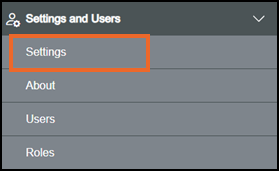
-
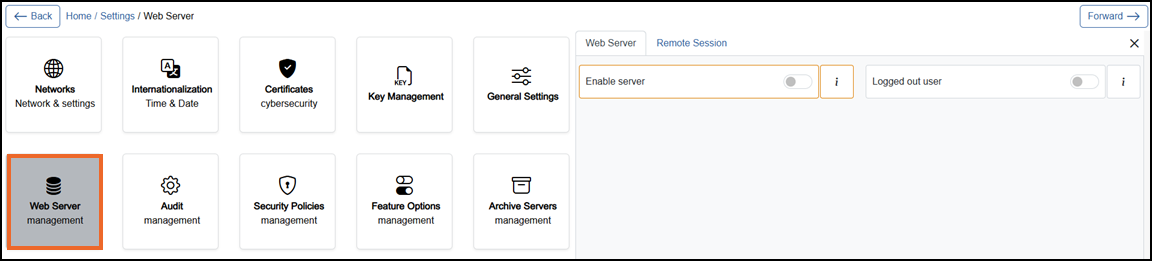
The Settings screen displays, select Web Server which then displays on the right-hand side of the screen:
-
If you are not already in Configuration lock, the Configuration lock screen displays
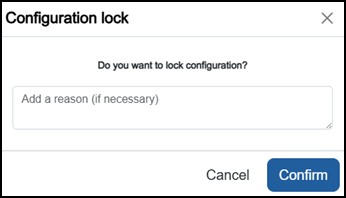
Enter a reason if required and then select Confirm
 . The system configuration is now locked pending the submission of your update and the Configuration Locked
  icon displays on the status bar.Note - Configuration lock does not affect the operation of the EPM device.See Configuration Lock for details.
 -
The screen has two tabs - Web Server and Remote Session:
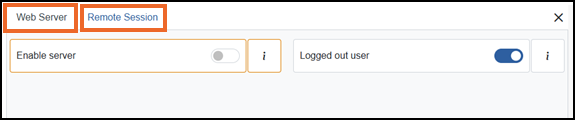
Select from the following options to expand the details:
 Web Server
Web Server tab lets you enable and configure remote browser access to the system, including The Hypertext Transfer Protocol/Hypertext Transfer Protocol Secure (HTTP/HTTPS) settings, ports, and guest access so users can securely connect and interact from other devices.
Complete as required:
-
Enable server - Off
 by default. Change to On
  the EPM device starts accepting remote web clients.
 -
Allow HTTP - Off
by default. Change to On the web server accepts HTTP connections, allowing access via standard web browsers without encryption.-
HTTP Port - Defaults to 80. Enter a valid port number or use the Plus
 or Minus
  to set the required port.
-
-
Allow HTTPS - On
by default. Change to Off the web server does not accept secure browser connections over HTTPS. -
HTTPS port - Defaults to 443. Enter a valid port number or use the Plus
 or Minus to set the required port.
 -
Logged out user - Off
by default. Change to On to allow a remote user to access the EPM home page as a guest/ logged-out session, rather than being directed straight to the login screen.Note - A guest user can only see what the logged out user role allows.Note - A guest user can still log in to get their normal permission. See Logging in for details.Tip - Each time you change the value of a port, a message displays the previous value. Select back to return to the previous value.
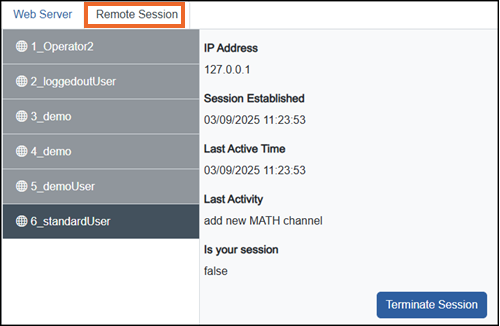
Remote Session provides a list of remote Web sessions currently active on the device. The logged in users are listed in each instance, along with the details.
To terminate active sessions:
-
From the Remote Session tab, select Remote Session:
-
Select any of the active sessions you want to terminate from the left-hand pane.
-
Select Terminate Session
 .
. -
The Terminate Session screen displays:
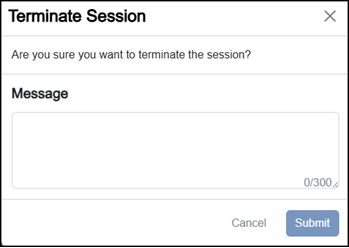
In Message, enter the reason for terminating the session.
-
Select either:
-
Submit - To continue, or
-
Cancel - To keep the session active.
Note - You cannot terminate your own session or the integrated HMI session. You can only terminate another user’s remote session. -
-
-
Once complete, select Review pending changes
 screen to review updates to the configuration, and submit them. See Reviewing and Submitting Changes for details if required.Note - Reviewing and submitting can be completed in bulk once you have completed all your additions and/or updates.
Last update - July 2026