Forcing a Password Reset from the EPM User Interface
There are several reasons you may need to force a user to reset their password, for example, you may suspect a password has been shared.
To force a user to reset their password:
-
From the EPM User Interface screen, select Options
 - Settings and Users - Users: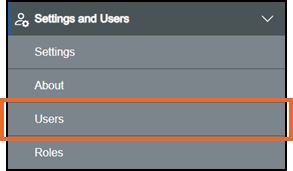
-
Your list of users displays, using either Search or the available filters, find the user required

-
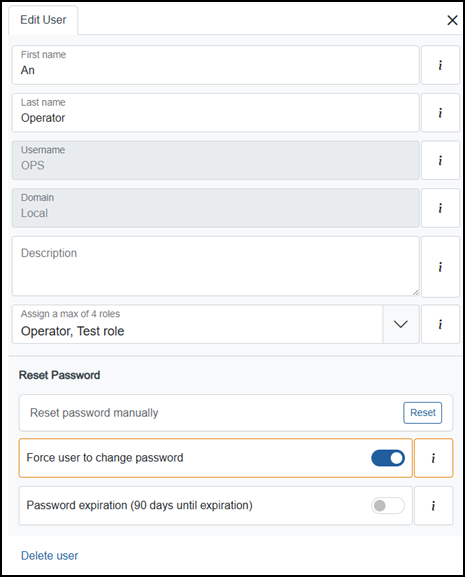
Select the user and the Edit User pane displays to the right of your screen, use the scroll bar to move down through the screen
-
Force user to change password defaults to off
 , select on
  .
. -
Once complete, select Review pending changes
 screen to review updates to the configuration, and submit them. See Reviewing and Submitting Changes for details if required.Note - Reviewing and submitting can be completed in bulk once you have completed all your additions and/or updates.
The next time this user logs into EPM Data Management, they are required to update their password.