Resetting a Password for a User from the EPM User Interface
If a user has forgotten their password, or for security reasons you need to change their password, you can reset it on their behalf.
To reset the password for a local user:
-
From the EPM User Interface screen, select Options
 - Settings and Users - Users: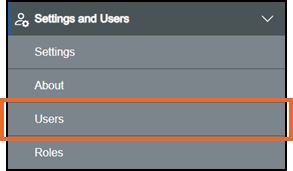
-
Your list of users displays, select the user required.
Tip - You can use either Search or the available Filters to find the user if required. -
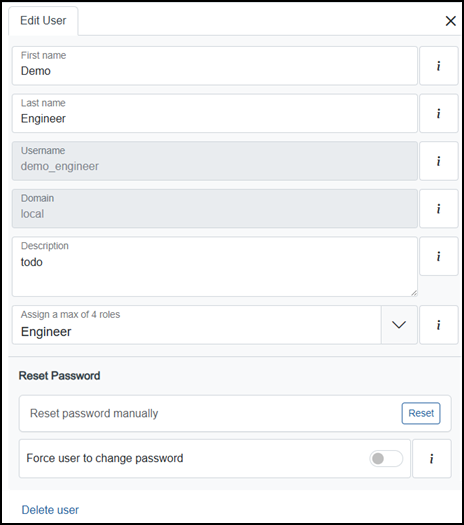
Select the user and the Edit user pane displays to the right of your screen, use the scroll bar to move down through the screen
-
From Reset password manually, select Reset
 .
. -
The Confirm your identity screen displays
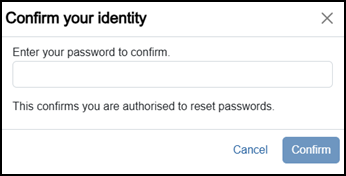
Enter your password and select Confirm
 .
. -
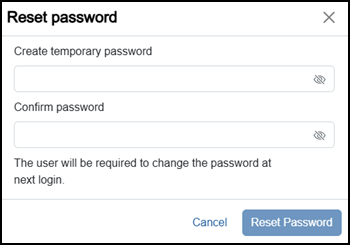
The Reset password screen displays, complete as follows
-
Create temporary password - Enter a new password for your user.
-
Confirm password - Enter the new password again to confirm.
Tip - The new password must match your system policies, see Configuring Security Policies for details if required.
-
-
Select Reset password
 .
.
Last update - April 2026