EPM User Interface Users
The EPM User Interface - Users screen is designed to enable you to securely manage a small number of users across individual devices.
The Users screen displays a list of all your users, sorted by Username, from here you can:
-
Display a filtered list of users, display specific user details or sort the list, see Searching, Filtering or Sorting the User list for details.
-
Add new users, see Configuring Users from the EPM User Interface for details.
-
Update users, see Viewing or Editing a User from the EPM User Interface for details.
-
Unlock user accounts, see Unlocking a Local User from the EPM User Interface for details.
-
Reset passwords for users, see Resetting a Password for a User from the EPM User Interface for details.
-
Force a user to reset their password, see Forcing a Password Reset from the EPM User Interface for details.
To access the Users screen, from the EPM User Interface screen, select Options  - Settings and Users - Users
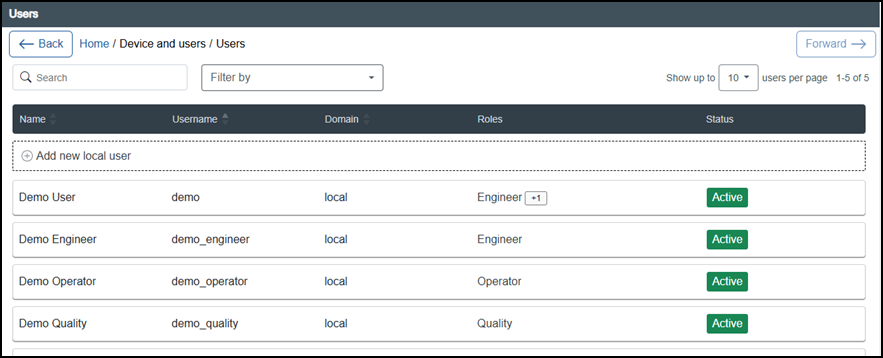
The Users screen displays the following columns:
-
Name - Displays user's names.
-
Username - A unique name attached to each user, used for logging in and audit purposes.
-
Roles - The role or roles assigned to the user within your system.If the user has more than one, +n
 (where n is the number of additional roles) displays, select, or if you have a mouse connected hover over, the number to display additional roles in alphabetical order.
 -
Status - The user's current status. If the user has more than one, a +n
(where n is the number of additional states) displays, select, or if you have a mouse connected hover over, the number to display additional states:-
Active
 - The user is a current active user.
 -
Locked
 - The number of times the user has tried to log in with an incorrect password has been exceeded, they are therefore locked out of the system, see Unlocking a Local User from the EPM User Interface for details on how to unlock an account.
-
Searching, Filtering or Sorting the User list
To search or filter the user list:
From the Users screen, select:

-
Search - To find a user, enter the first name, last name or the username of the user you are looking for in Search and the list updates as you type, or
-
Filter by - To filter the list to match a specific criteria. Select Filter by
 , tick the filter(s) required and select Apply filter
  :
: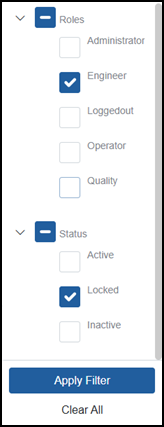 Tip - The options in the Filter by list initially display as collapsed, select Expand
 to display and selected the options available.
A number displays on Filter by
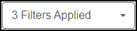 to indicate you are viewing a filtered list and how many filters are active.
The Users list displays in ascending Username order by default, you can reorder by Name or Username.
To change the order of the user list:
-
Ascending - Select the up arrow
 on the column header to sort by.
 -
Descending - Select the down arrow
 on the column header to sort by.
Last update - April 2026