Filtering the Batch Summary Screen
By default, the Batch Summary screen displays all current Batches .
To filter the Batches that display:
-
From the EPM User Interface screen, select Options
 - Batch - Batch Summary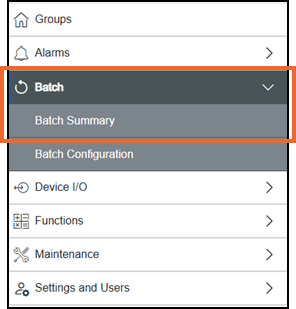
or select the Batch panel from the EPM Status bar.
-
From the left-hand pane, select Filter
 .
. -
The Filter list displays
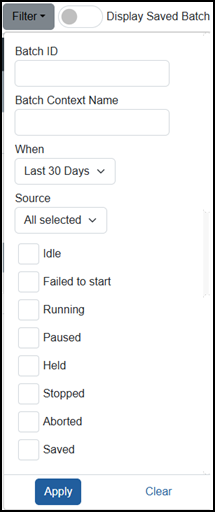
Select from:
-
Batch ID - Enter the identifier for the batch(es) required.
-
Batch Context Name - If you are looking for batches based on a specific Batch Configuration, enter the name for the configuration required
-
When - Select a date range from the available list. If you select Custom Range, select the following:
-
Start date - Select the date the batch(es) required started.
-
Start time - Select the time the batch(es) required started.
-
End date - Select the date the batch(es) required ended.
-
End time - Select the time the batch(es) required ended.
-
-
Source - Select the source from the available options.
-
Idle - Tick to display idle batches.
-
Failed to Start - Tick to display batches that have failed to start.
-
Running - Tick to display running batches.
-
Paused - Tick to display paused batches.
-
Held - Tick to display batches that are held.
-
Stopped - Tick to display batches that are stopped.
-
Aborted - Tick to display batches that are aborted.
Tip - To filter by multiple statuses at one time, tick more than one.
-
-
Select Apply
 to apply the filter, or Clear
  to close the filters without applying them.
The selected Batches now display.
Last update - June 2026