Using the Batch Summary Screen
The Batch Summary screen displays a list of all Batches that are yet to be archived from your device.
To display the Batch Summary screen, either:
-
From the Status Bar - Select the Batch Panel

-
From the EPM User Interface screen, select Options
 - Batch - Batch Summary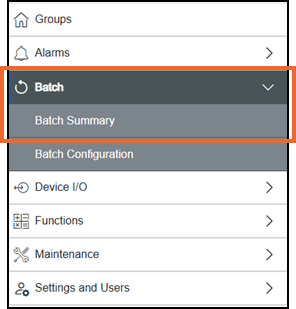
The Batch Summary screen displays
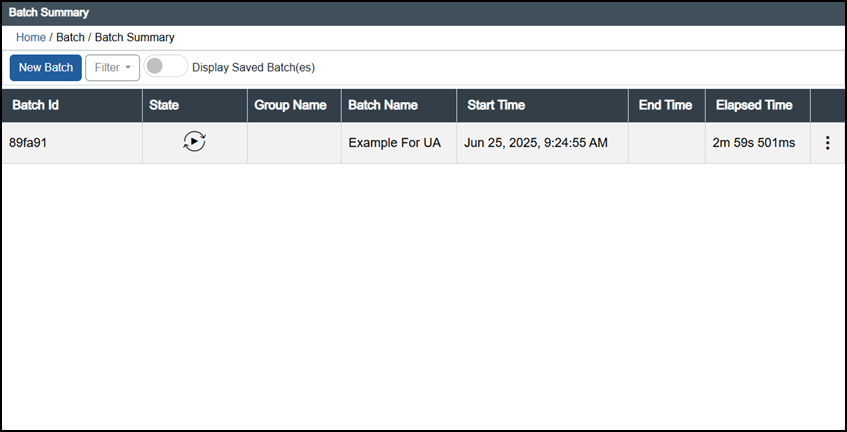
The following columns display:
-
Batch Id- The identifier allocated to a batch.
Tip - If you are using the Batch ID Modifier Type of Read Only then the Batch Id is a combination of the Batch configuration name and the Batch ID Modifier. -
State - The current status of the batch:
Batch Symbol Batch Status 
Stopped 
Running 
Paused 
Idle 
In transition Saved Displays on the Batch Summary screen only, batch defined and ready to run. -
Group Name - The name of the Group a Batch is attached to.
-
Batch Name - The name attached to the Batch.
-
Start Time - The date and time the Batch started, blank if the Batch is not started.
-
End Time - The date and time the Batch finished running, blank if the Batch is not started, still running or is continuous.
-
Elapsed Time - Where running or complete, the time the batch has been running or took to run.
-
Options
 - Select to quickly start a Batch running, select Start Batch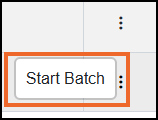
Select New Batch  to run a new batch, see Defining and Running a Batch for details.
Select Filter  to define the list of batches that display, see Filtering the Batch Summary Screen for details.
Display Saved Batch(es) defaults to Off  , select to display batches that are set up to run but not yet started.
Select a batch to display the Batch Information pane in a right-hand panel
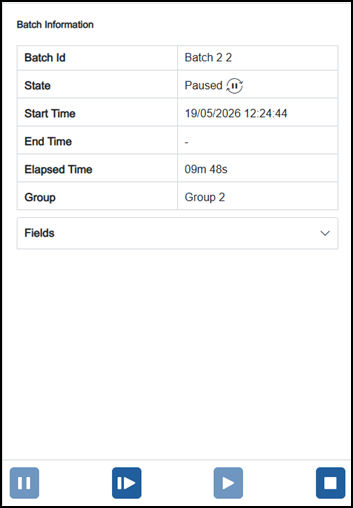
The Fields sections initially display collapsed, select Expand  to display the information:
-
Fields - Displays the information recorded when the batch was started and/or stopped.
The available actions depend on the status of the batch, and the permission attributed to your user role. Those not available or appropriate display as inactive  :
:
| Action Symbol |
Action Description |
|---|---|

|
Resume - Select to resume the highlighted batch from where it was paused. |

|
Pause - Select to pause the highlighted batch. |

|
Run - Select to pause the highlighted batch. |

|
Stop - Select to stop the highlighted batch. |
Last update - June 2026