Using the Totalizers Operator Panel
The operating panel on a channel screen displays the live value and has options to perform common actions appropriate to that channel. To view and utilize a Totalizer operating panel:
- From the EPM User Interface screen, select Options
 - Functions - Totalizers: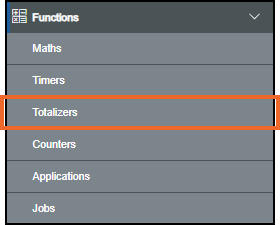
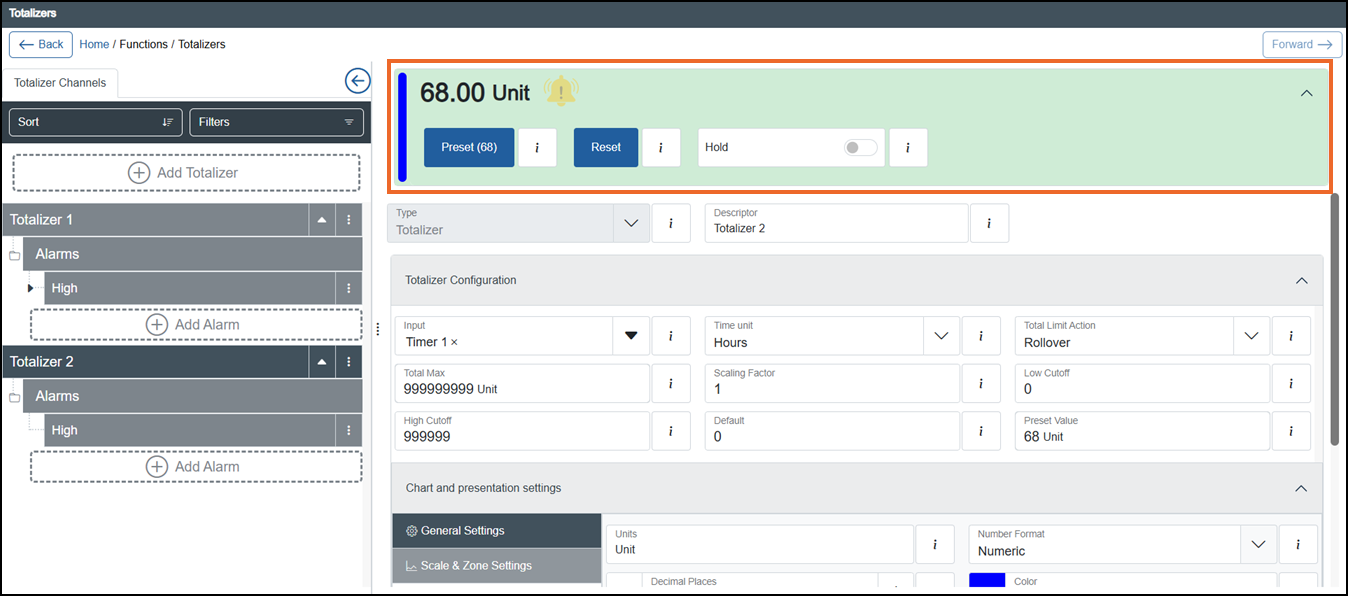
- The Totalizers screen displays, select the Totalizer required from the left-hand side to display the details including the operating panel in the right-hand pane:
 Tip - Remember you can use Sort or Filters to find a specific totalizer, see Sorting and Filtering Totalizersfor details.Tip - Select Expand
 to display the operator panel if required.
The operator panel displays the following for the selected Totalizer channel:
-
Live value - The live value or status directly from the channel:

-
Alarm status - The current state of any alarms configured for this totalizer:
 See Understanding Alarm Symbols for details.
 -
Preset - Select to return this totalizer to the predefined Preset value. The Preset Confirmation screen displays, select Preset
 to continue: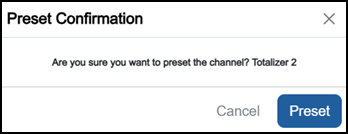
Preset is overridden by Hold and Reset.
Note - You can only access this option if you have the Can preset Totalizer permission. If you need to access this function and cannot, please contact your system administrator. -
Reset - Select to reset this totalizer output to zero, by default this resets the overflow monitoring. The Reset Confirmation screen displays, select Reset
 to continue: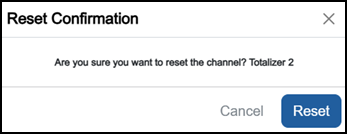
Reset is overridden by Hold.
Note - You can only access this option if you have the Can reset Totalizers permission. If you need to access this function and cannot, please contact your system administrator. -
Hold - Select to hold the totalizer output at its current value:
-
Hold
 - Totalizer is not held.
 -
Hold
 - Totalizer is held.
Note - You can only access this screen if you have the Can hold Totalizers permission. If you need to access this function and cannot, please contact your system administrator. -
Last update - June 2026