Upgrading EPM Data Management
| Notice |
|---|
|
RISK OF DATA LOSS OR CORRUPTION
Failure to follow this instruction can result in data loss |
Once complete, select Review pending changes  screen to review updates to the configuration, and submit them. See Reviewing and Submitting Changes for details if required.
To upgrade to a new version of EPM Data Management:
-
From your computer, open a web browser and go to www.eurotherm.com. In Search , type “EPM”. Locate Downloads - Firmware upgrade and select the EPM firmware upgrade package to download. See How do I extract a file onto a USB-C flash drive?
-
Insert your USB-C flash drive into your computer.
-
Navigate to your Download folder and copy the downloaded file to the inserted USB-C flash drive:
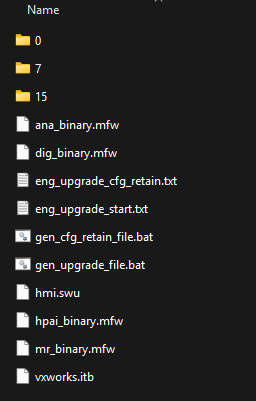 Tip - Ensure the USB-C flash drive that you are using is FAT32 formatted and has been checked and is clear of malicious software.See Best Practice for Using a USB Flash Drive for details.
 -
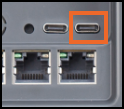
On your device insert the USB-C flash drive into the right-hand side USB-C socket:
-
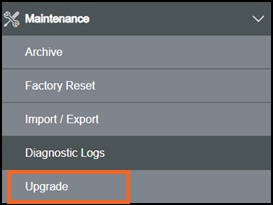
From the EPM User Interface screen, select Options
 - Maintenance - Upgrade:
 -
Check whether any configuration changes are running in the background. If they are, the Upgrade cannot continue message displays:
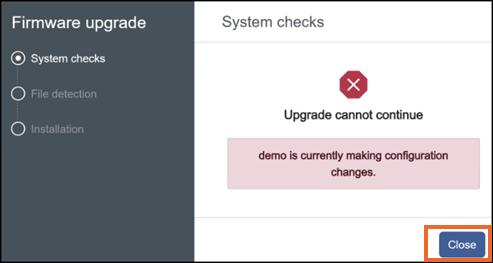
Select Close, complete the changes, and then return to the upgrade.
-
Once the system checks are completed, the Firmware upgrade message displays:
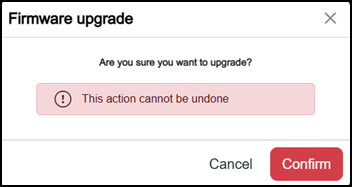
Select either:
-
Confirm to continue, or
-
Cancel to stop the upgrade process.
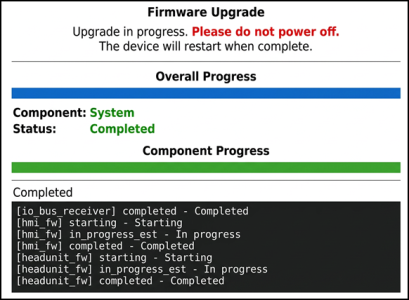
During the installation process, the following screens display:
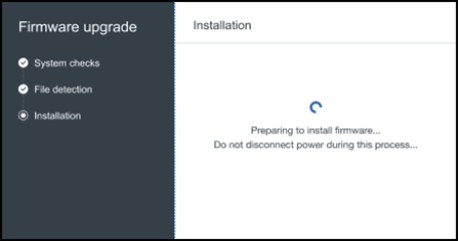
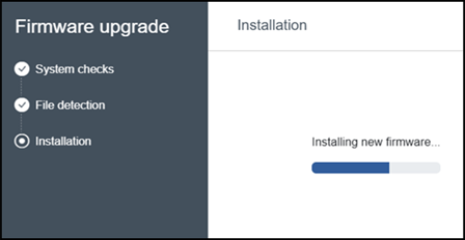
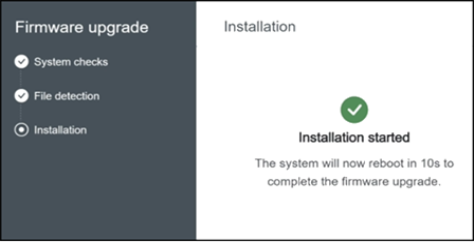
Once the upgrade completes, the Connection lost screen, followed by the Firmware Upgrade message displays on the human machine interface (HMI) display:
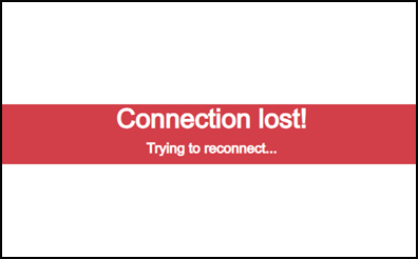
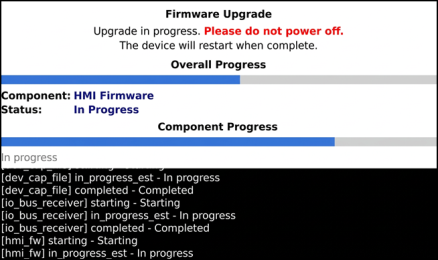
-
-
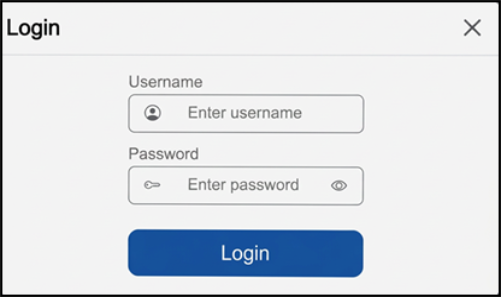
When the Login screen displays on your HMI you can login in the usual way:
Your EPM device is now upgraded to the version selected.
Last update - April 2026