Replacing the Real Time Clock (RTC) Battery
The EPM-07 and EPM-15 devices are fitted with a real time clock (RTC) battery from installation. The RTC is an independent timer used to provide system time in the case of power interruptions.
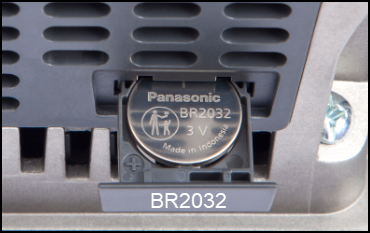
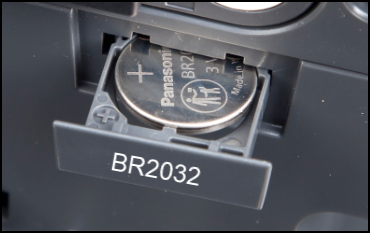
The battery used within the EPM-07 and EPM-15 devices is a BR2032 3 V button cell.
If you do not replace the battery when prompted to do so by the Battery Low Alarm  , a power outage can result in the loss of the current date and time.
Should this occur, the following aspects of the system must be reviewed once the RTC is reset:
-
Timers - Timers may restart before the RTC is reset, this can result in inaccurate results, see Timers for details.
-
Recording - Recording continues immediately power is restored so that no data is lost, but the date and time attributed to the data will be inaccurate until the RTC is reset, see Using the Historic View for details.
-
Jobs/Actions - Any Jobs or Actions that are date or time dependent my be affected and should be reviewed, see Jobs for details.
-
Batches- Any Batches running when the time and date are lost display inaccurate running times.
If the battery level is low enough to indicate replacement is required, or if the battery is missing or inserted incorrectly:
-
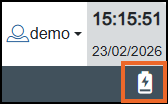
A battery warning displays on the status bar of your EPM User Interface (EPM UI):
-
A System Alarm is triggered, displaying on the status bar of your EPM UI
 and within the Alarm Summary screen:
If the device suffers a power outage or, is powered down to replace the battery, the RTCFail alarm triggers:

To replace your RTC battery:
|
|
|---|
|
HAZARD OF ELECTRIC SHOCK, EXPLOSION OR ARC FLASH
Failure to follow these instructions will result in death or serious injury |

 DANGER
-
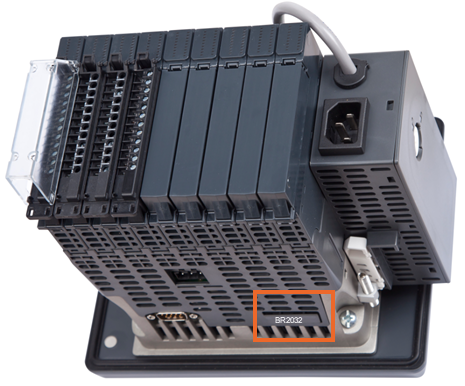
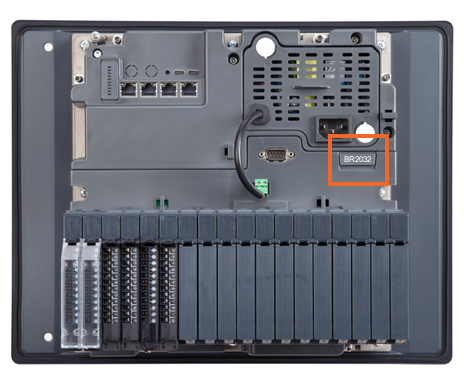
From the back of your cabinet, access your device and gently pull the battery draw, marked BR2032, out:
EPM-07
EPM-15
-
Remove the depleted battery.
-
Insert the new battery into the drawer, positive side out, and gently push the drawer to close.
After a short delay, the battery warning should no longer display on your status bar.
From the Alarm Summary screen, if the alarm has not been Acknowledged, it displays as an unacknowledged System Alarm, triggered but no longer active  . Select the appropriate alarm and then select Acknowledge
  to clear it.
Last update March 2026