Viewing Group Messages
Group related events such as creation, modification, deletion, recording/view changes, alarms, operator notes and batch actions generate messages and audit-style entries. The Group Messages screen displays the recorded messages and event entries for the selected Group:
| Category | Meaning |
|---|---|
|
System |
System-generated device or service messages. These are messages raised by the system rather than by specific operator action. Some system-generated messages are written to all groups, for example, a system alarm that is not associated with a specific group is written to all groups and associated group history/live views. |
|
Alarm |
Alarm-related entries, including alarm events and alarm-associated actions. |
|
Powerup |
Restart/power-up messages. These are written to all groups and associated group history/live views. |
|
General |
Annotations, alerts and messages that do not fall into a specific class such as Alarm, Batch, Audit, or Signing. |
|
Batch |
Batch-related events. |
|
Login |
User session events, such as login/logout. |
|
Signing |
Records created when an operation is electronically signed or signed/authorized. Signing requires the user to re-authenticate. If authorization is required, it follows signing, and in some cases sign/authorize may display as a separate record. Note - Only available when the Auditor Full/ 21CFRPart11 option is enabled in the Feature Options and Requires Signing, Requires Note and Requires Authorization options are enabled in Audit Management.
|
|
Audit |
Audit-trail entries for configuration changes and runtime/operator actions. For example, saving a configuration change to a channel or an alarm creates an audit entry displaying what changed, who made the change, and when. Similarly, a runtime action such as acknowledging an alarm or resetting an application function creates an audit entry displaying the user, time, and action performed. Note - Only available when the Audit Trail option is enabled in Audit Management.
|
|
AMS2750 |
AMS2750-related compliance/evidence messages, linked to AMS2750 application functions and actions such as Calibration Due, SAT Due, TUS Due, Thermocouple Life, resets, and other AMS2750-related events. |
To view Group Messages:
-
From the EPM User Interface screen, select Options
 - Groups: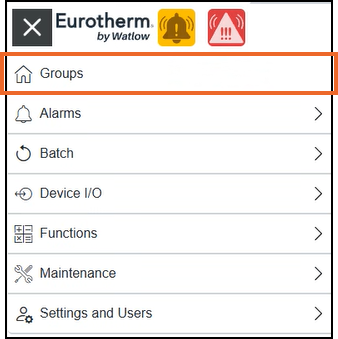
-
The Groups screen displays, from the required group card, select Options
 - Group Messages: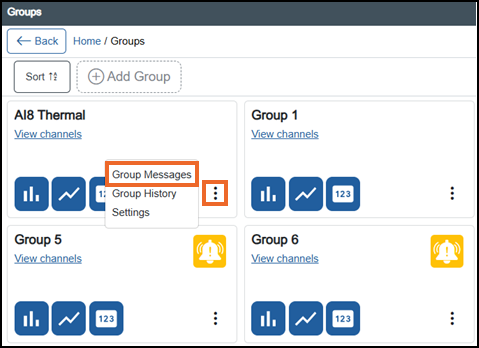
The Group Messages screen displays:
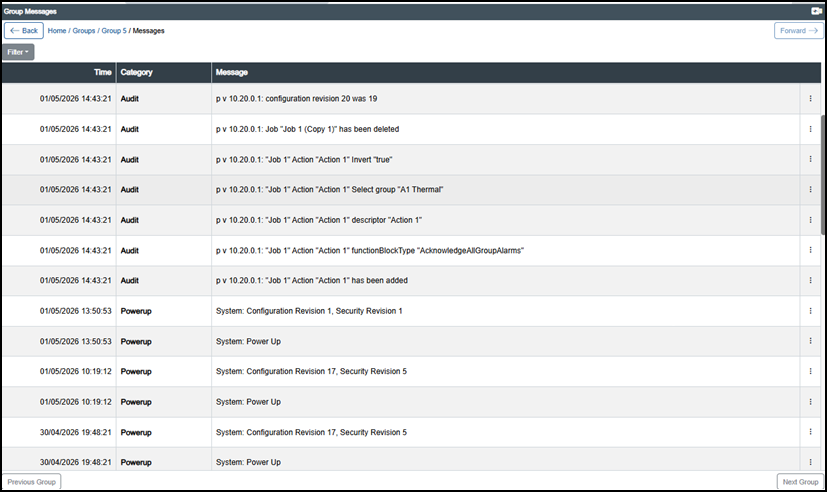
You can view, scroll, filter, and inspect recorded messages and event entries for the selected group.
Last update - July 2026