Configuring the Chart and Presentation Settings of an Application Channel
When configuring a channel, you can define the unit, number format, color, line style, scale and zoning attributes from the Chart and presentation settings section.
To configure the Chart and presenting settings of an Application channel:
- From the EPM User Interface screen, select Options
 - Functions - Applications: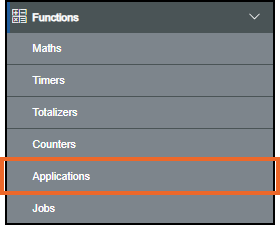
-
The Applications screen displays, from the left-hand side, select the required Application channel.
-
The Chart and presentation settings display in the right-hand side, select Expand
 if it does not expand automatically: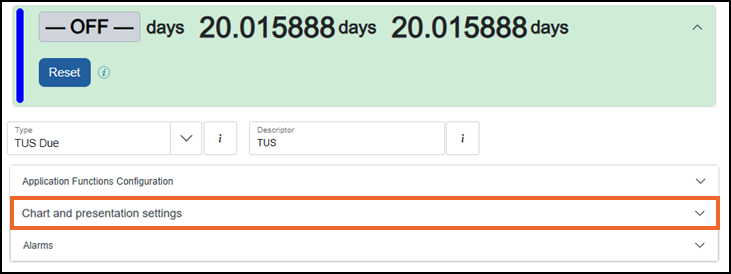
-
The General Settings tab is selected by default:

-
Units - Enter an engineering unit, for example, °C, psi or Volts, up to a maximum of six characters. For information on entering special characters, see How do I enter special characters?.
Tip - The unit displays with the channel value on the Operator Panel. -
Number Format - Select either:
-
Numeric - Displays values in decimal format, for example, 12345.6789 displays as 12,345.6789.
-
Scientific - Displays values in scientific notation, useful for very large or very small numbers. Numbers display as a coefficient multiplied by a power of 10, for example, 12345.6789 displays as 1.23456789E+4.
-
-
Decimal Places - Enter the value, or use the Plus
 and Minus
  to set the decimal place (0 to 6).
 -
Color - Select a color from one of the 56 available colors:
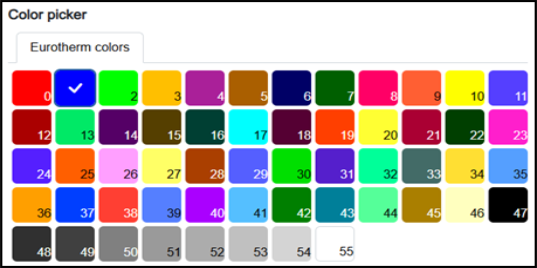
-
-
Select Scale & Zone Settings:
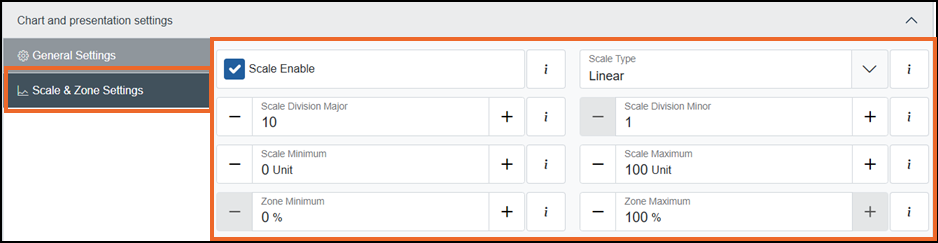
To set the chart scale and zoning for this channel:
-
Scale Enable - Tick to enable scale configuration and specify the scale type and the number of divisions required:
-
Scale Type (available only when Scale Enable is enabled) - Select one of the following options:
-
Logarithmic - Divisions are displayed using a logarithmic scale. This option is suitable for analyzing data spanning multiple orders of magnitude.
-
Linear - Divisions are displayed at equal intervals. This option is ideal for displaying uniformly distributed data:
-
Scale Division Major (available only when Scale Type is Linear) - Enter a value, or use the Plus
and Minus to set the major divisions to be included on the chart (valid range 1 to 20). -
Scale Division Minor (available only when Scale Type is Linear) - Enter a value, or use the Plus
and Minus to set the minor divisions to be included on the chart (valid range 1 to 20).Note - Scale divisions have no impact on a chart grid, they are only for scale. The grid on the chart is defined by the division settings on the group, see Configuring Groups Settings for details.
-
-
-
-
Scale maximum (Unit) - Enter a value, or use the Plus
and Minus to set the upper limit of the scale's range. -
Scale minimum (Unit) - Enter a value, or use the Plus
and Minus to set the lower limit of the scale's range. -
Zone maximum (%) - Enter a value, or use the Plus
and Minus to set the percentage offset for the upper limit of the scale and trendline relative to the top of the chart (valid range 5 to 100). -
Zone minimum (%) - Enter a value, or use the Plus
and Minus to set the percentage offset for the lower limit of the scale and trendline relative to the bottom of the chart (valid range 0 to 95).Note - The minimum value must be less than the maximum value by 5 or more.Tip - The Zone settings offset a scale and its associated trendline relative to the chart grid. This is useful when displaying multiple trends with similar value ranges, which would otherwise overlap and become difficult to distinguish. For example, several digital trends switching between 0 and 1 can overlap, making them difficult to distinguish unless each is defined a different Zone.
-
-
Once complete, select Review pending changes
 screen to review updates to the configuration, and submit them. See Reviewing and Submitting Changes for details if required.Note - Reviewing and submitting can be completed in bulk once you have completed all your additions and/or updates.