Using the Maths Operator Panel
This section describes how to access the Maths Operator panel, monitor live values, and perform runtime operations for Maths channel types such as Channel Average, Rolling Average and Group Latched Minimum.
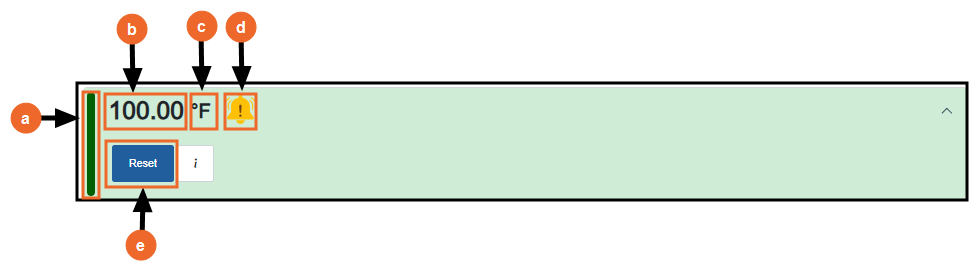
The Operator panel displays the following for a channel:
-
Channel Color - Configured color of the channel, see the Color option in Chart and presentation settings for further details.
-
Live Value/Status - Live output value or current status of the channel. When valid data is available, the Operator panel displays the live output value of a channel, see Criteria for a Valid Value for further details. If the channel cannot calculate a valid value, for example, due to invalid or missing inputs or configuration issues, the Operator panel displays a status message such as Invalid or Off. See Understanding Runtime Status Indicators for further details.
-
Channel Unit - Configured engineering unit of the channel, for example, oC. See the Unit option in Chart and presentation settings for further details.
-
Alarms - Current alarm status of the channel, see Understanding Alarm Symbols for further details. If a Job or Action is associated with the alarm, select the alarm to update it. See Configuring Jobs and Configuring Actions for further details.
-
Runtime operations - Runtime options available for the channel, such as Reset, Hold, or Switch, depending on the channel type, current channel state and user permissions.
Note - Some channels are monitor-only and do not support runtime operations.
To access the Maths Operator panel:
- From the EPM User Interface screen, select Options
 - Functions - Maths: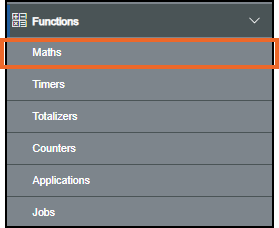
-
The Maths screen displays, from the left-hand side, select the required channel. The Maths Operator panel displays on the right-hand side
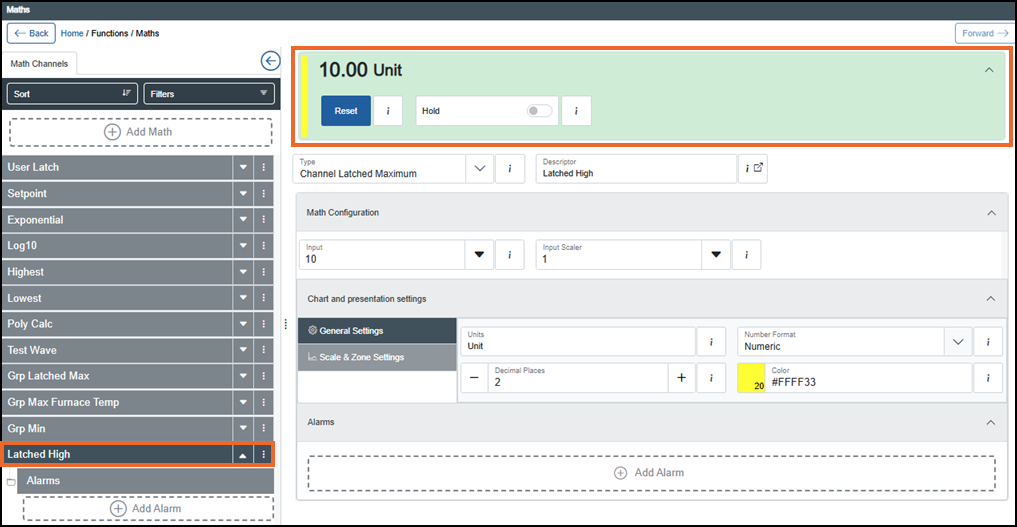
Select from the following options to expand the details:
 Analog Value
An Analog Value Maths channel stores a numeric (analog) value. You can configure optional high and low limits to restrict the range of values that can be entered from the Operator panel.
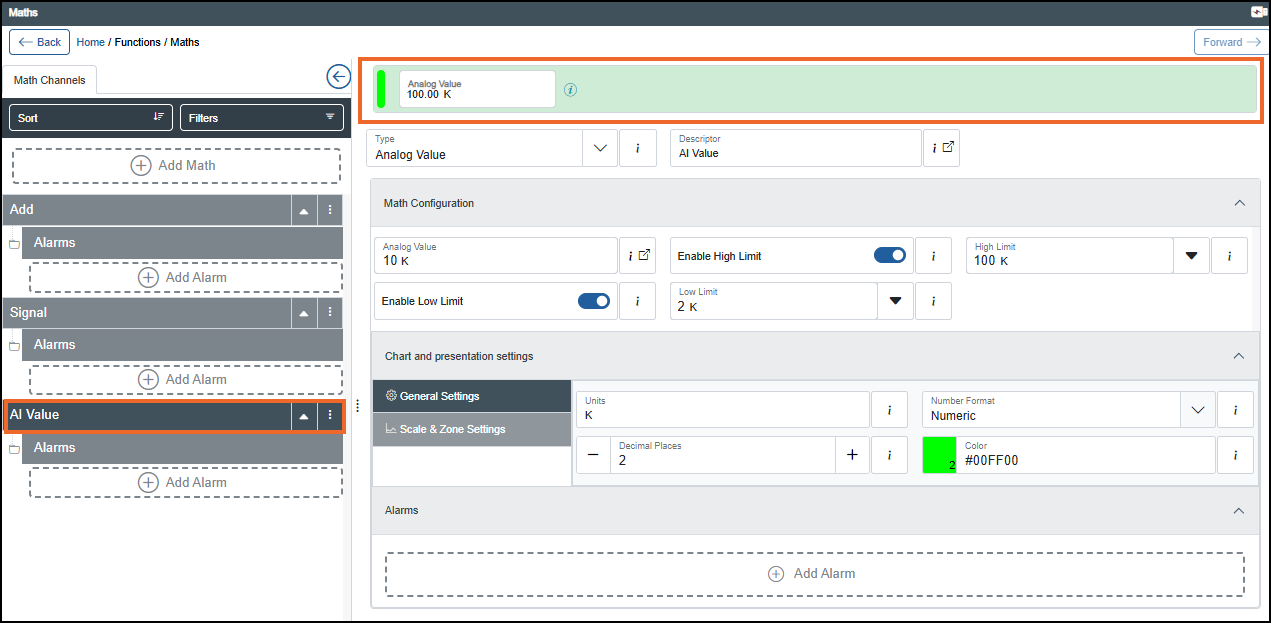
The Operator panel displays the live analog value and lets you change it during runtime:
-
Analog Value - Enter or change the value. At runtime, the new value takes effect immediately and remains in use until it is changed again.
Tip - If limits are enabled, any attempt to set a value outside the configured range is restricted.Note - You can only access this function if you have the Can edit User Values permission. If you need to access this function and do not have permission, please contact your system administrator.
Channel AverageA Channel Average Maths channel calculates and outputs the average (arithmetic mean) value of an input over a specified time period.
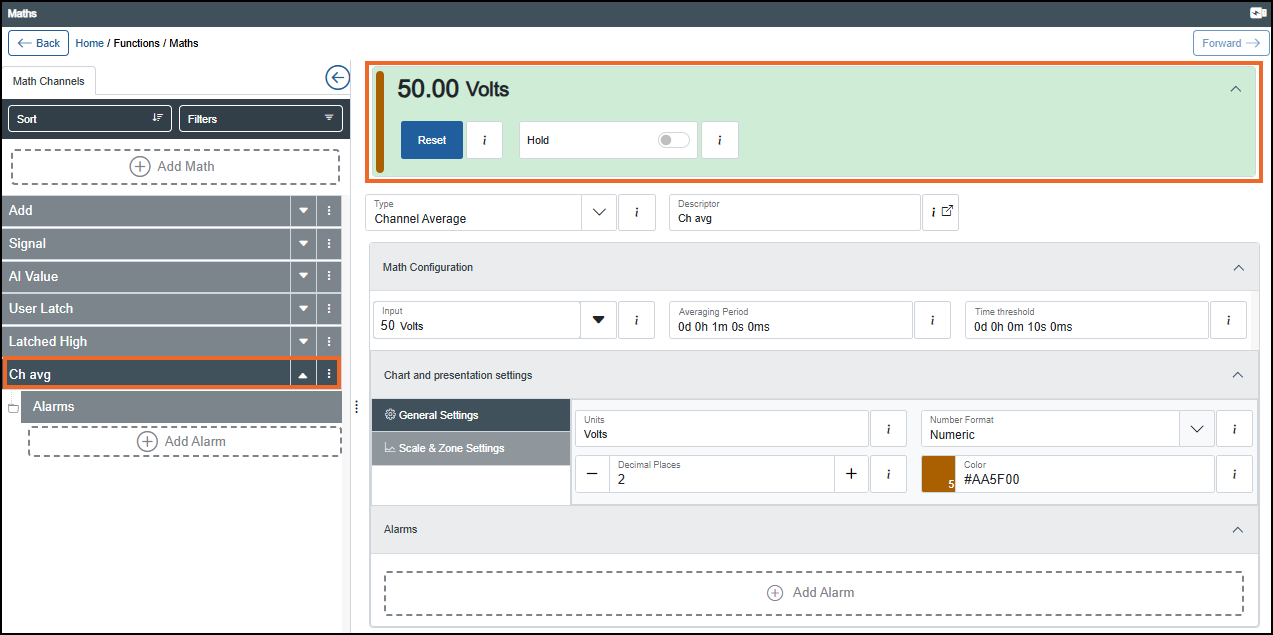
The Operator panel displays the live Channel Average value and lets you reset/hold the calculation:
-
Reset - Restarts the averaging calculation. When selected, the Reset Confirmation screen displays. Select Reset to confirm:
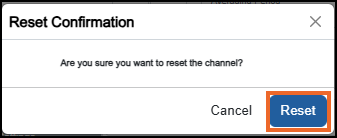
The status immediately displays No Data, then displays the calculated average after each Averaging Period.
Note - You can only access this function if you have the Can reset Maths permission. If you need to access this function and do not have the permission, please contact your system administrator.-
Hold - When On
 , holds the output at its current value.Note - You can only access this function if you have the Can hold Maths permission. If you need to access this function and do not have the permission, please contact your system administrator.
-
For example, if the Averaging Period is set to one minute and Reset is selected, the status is set to 'No Data' for one minute. After this period, the calculated average is displayed and updated every minute. When Hold is On , the output holds the last calculated average and no new data is included in the calculation until Hold is released.
Channel Latched Maximum
A Channel Latched Maximum Maths channel continuously monitors the input and outputs the highest value recorded since the last reset. An optional Input Scaler can be applied to the input before the maximum value is evaluated and latched.
The Operator panel displays the live Channel Latched Maximum value and lets you reset/hold the calculation:
-
Reset - Resets the output to the current input value. When selected, the Reset Confirmation screen displays. Select Reset to confirm:
Note - You can only access this function if you have the Can reset Maths permission. If you need to access this function and do not have the permission, please contact your system administrator.-
Hold - When On
, holds the current output value.Note - You can only access this function if you have the Can hold Maths permission. If you need to access this function and do not have the permission, please contact your system administrator.For example, if a temperature sensor reads 45 °C (113 °F), then 40 °C (104 °F), then 42 °C (107.6 °F), the output latches at 45 °C (113 °F) and remains at that value until reset. If Reset is then activated , the latched value is set to 42 °C, (107.6 °F) the current input value, and the previous readings are discarded.
Related topics - Configuring a Channel Latched Maximum Maths Channel.
-
Channel Latched Minimum
A Channel Latched Minimum Maths channel continuously monitors the input and outputs the lowest value recorded since the last reset. An optional Input Scaler can be applied to the input before the minimum value is evaluated and latched.
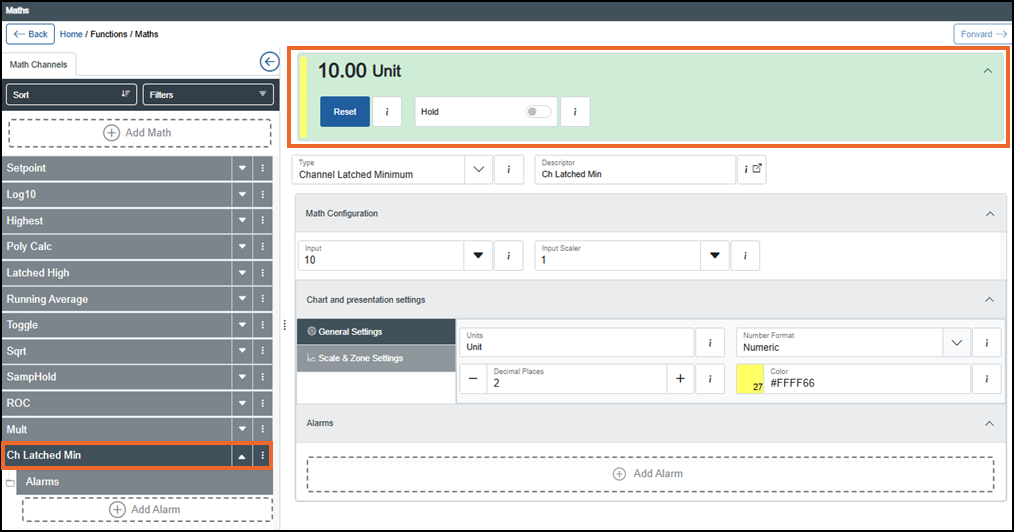
The Operator panel displays the live Channel Latched Minimum value and lets you reset/hold the calculation:
-
Reset - Select to r Resets the output to the current input value. When selected, the Reset Confirmation screen displays. Select Reset to confirm:
Note - You can only access this function if you have the Can reset Maths permission. If you need to access this function and do not have the permission, please contact your system administrator.-
Hold - When On
, holds the current output value.Note - You can only access this function if you have the Can hold Maths permission. If you need to access this function and do not have the permission, please contact your system administrator.For example, if a temperature sensor reads 45 °C (113 °F), then 40 °C (104 °F), then 42 °C (107.6 °F), the output latches at 40 °C (104 °F), and remains at that value until reset. If Reset is then activated , the latched value is reset to 42 °C (107.6 °F), the current input value, and the previous readings are discarded. The channel then latches any subsequent input value that falls below 42 °C (107.6 °F).
Related topics - Configuring a Channel Latched Minimum Maths Channel. -
Digital Value (Latched)
A Digital Value (Latched) Maths channel stores a Boolean (True/False) value. The True and False states display the user-defined Open String and Closed String text.
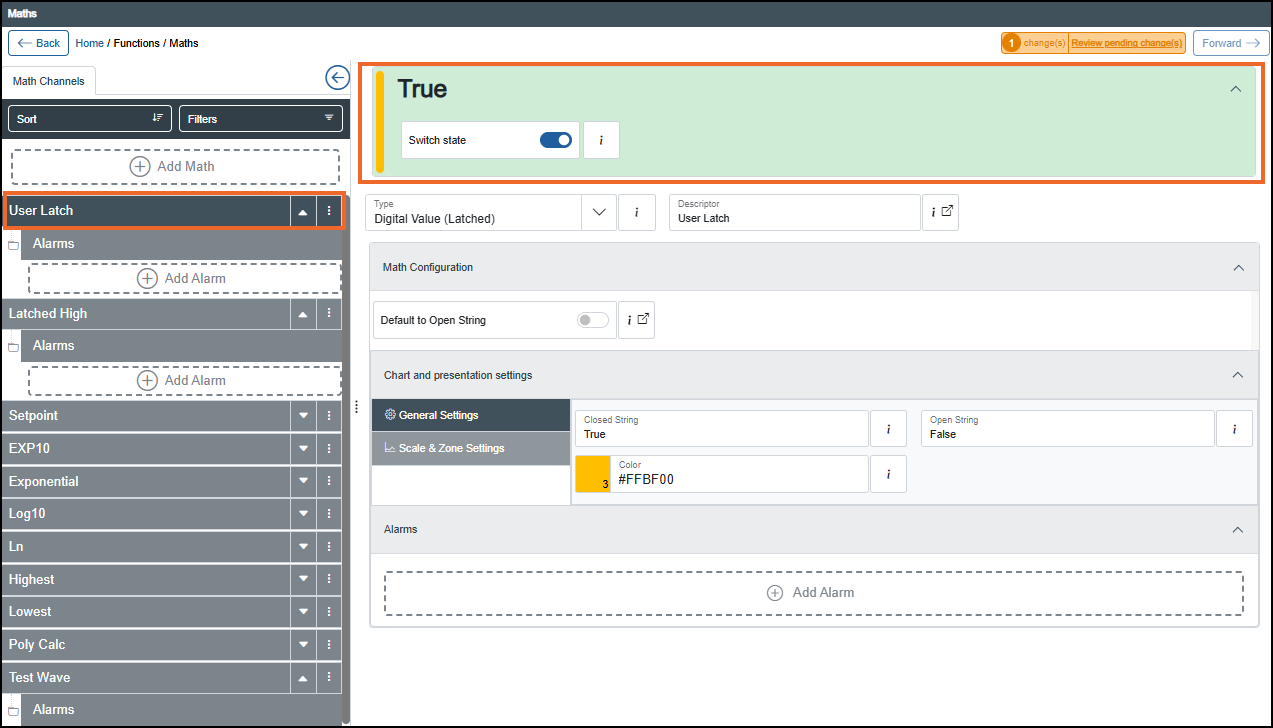
The Operator panel displays the live Open/Closed state and lets you switch state:
-
Digital Value - Allows you to toggle the latched digital value between its configured Open and Closed states (displays the Open String and Closed String text configured in the Chart and presentation settings. The selected state remains latched until it is changed again.
Note - You can only access this function if you have the Can edit User Values permission. If you need to access this function and do not have the permission, please contact your system administrator.
Group Latched Maximum
A Group Latched Maximum Maths channel outputs the maximum valid value reached by any channel in a selected source group since the last reset. Channels without a valid value are ignored, see Criteria for a Valid Value for further details.
The Operator panel displays the live Group Latched Maximum value and lets you reset/hold the calculation:
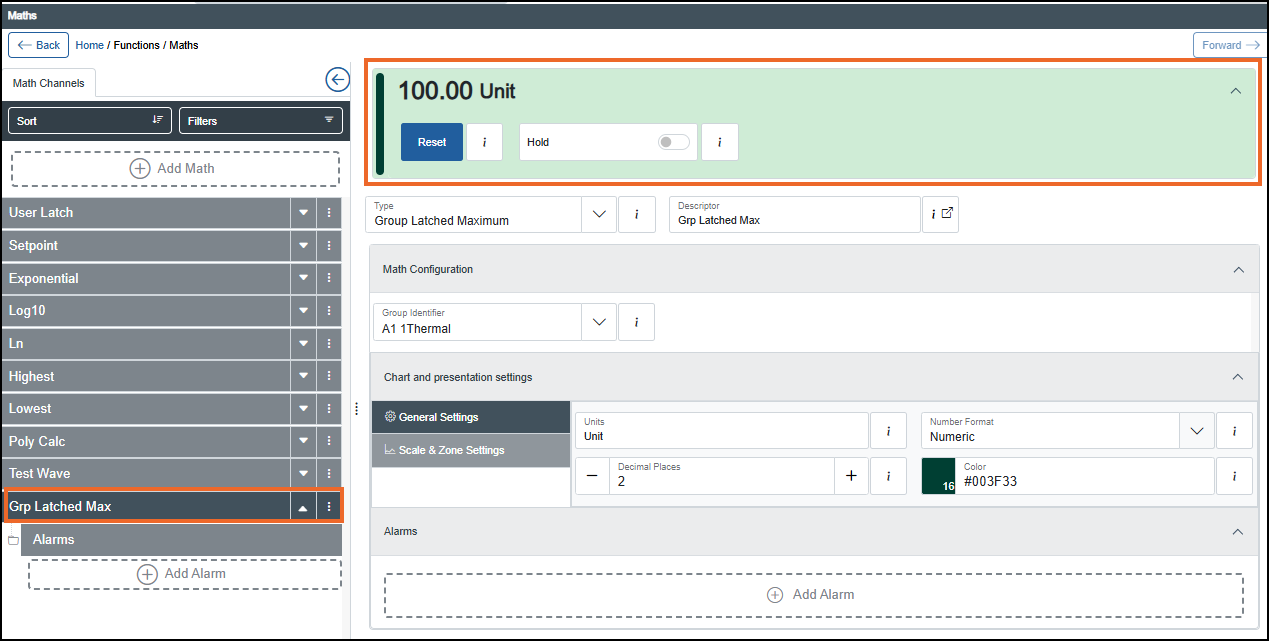
-
Reset - Resets the output to the current input value. When selected, the Reset Confirmation screen displays. Select Reset to confirm:
Note - You can only access this function if you have the Can reset Maths permission. If you need to access this function and do not have the permission, please contact your system administrator. -
Hold - When On
, holds the current output value.Note - You can only access this function if you have the Can hold Maths permission. If you need to access this function and do not have the permission, please contact your system administrator.
For example, if three sensors read 40 °C (113 °F) , 52 °C (125.6 °F), and 47 °C (116.6 °F), the output latches at 52 °C (125.6 °F) and remains at that value until reset. If the Reset is then enabled , the latched value is cleared. If the next readings are 45 °C (113 °F), 49 °C (120.2 °F), and 46 °C (114.8 °F), the output latches at 49 °C (120.2 °F) as the new maximum.
Group Latched Minimum
A Group Latched Minimum Maths channel outputs the lowest valid value reached by any channel in a selected source group since the last reset. Channels without a valid value are ignored, see Criteria for a Valid Value for further details.
The Operator panel displays the live Group Latched Minimum value and lets you reset/hold the calculation:
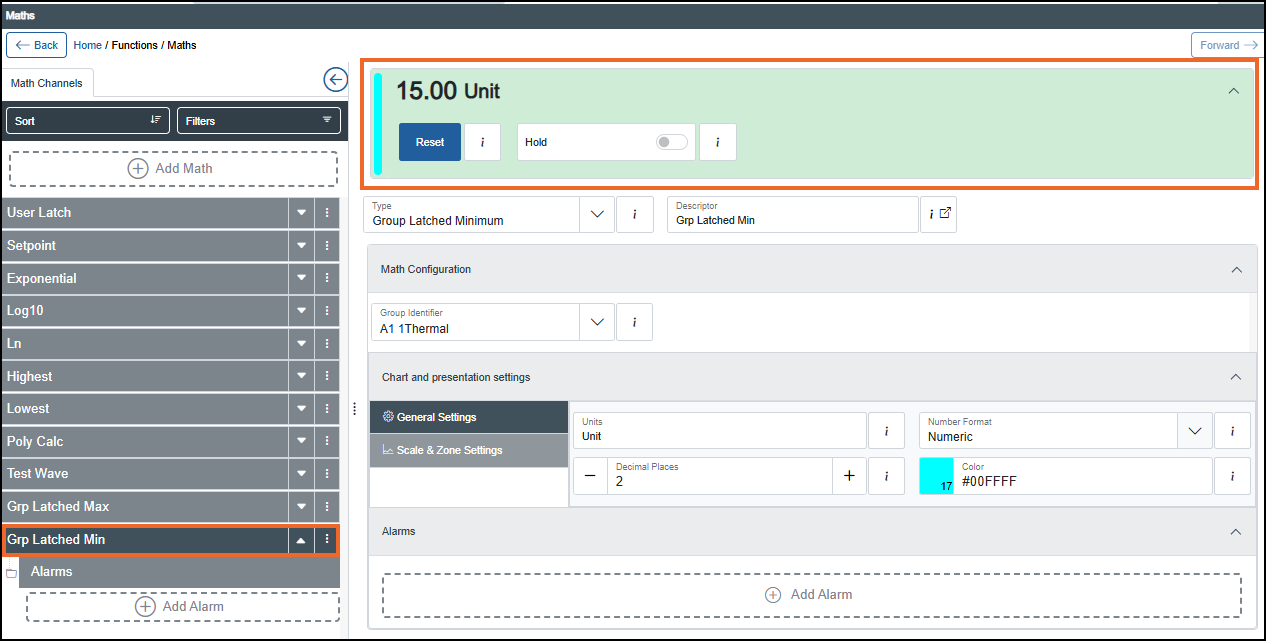
-
Reset - Resets the output to the current input value. The Reset Confirmation screen displays. Select Reset to confirm:
Note - You can only access this function if you have the Can reset Maths permission. If you need to access this function and do not have the permission, please contact your system administrator. -
Hold - When On
, holds the current output value.Note - You can only access this function if you have the Can hold Maths permission. If you need to access this function and do not have the permission, please contact your system administrator.
For example, if three sensors read 38 °C (100.4 °F), 35 °C (95 °F), and 36 °C (96.8 °F), the Output latches at 35 °C (95 °F) and remains at that value until reset. If Reset is then activated after this, the latched value is cleared. If the next readings are 37 °C (98.6 °F), 39 °C (102.2 °F), and 36 °C (96.8 °F), the output latches at 36 °C (96.8 °F) as the new minimum.
Rolling Average
A Rolling Average Maths channel calculates and outputs the average (arithmetic mean) value of an input over a specified number of samples taken at a specified interval.
The Operator panel displays the live Rolling Average value and lets you reset/hold the calculation:
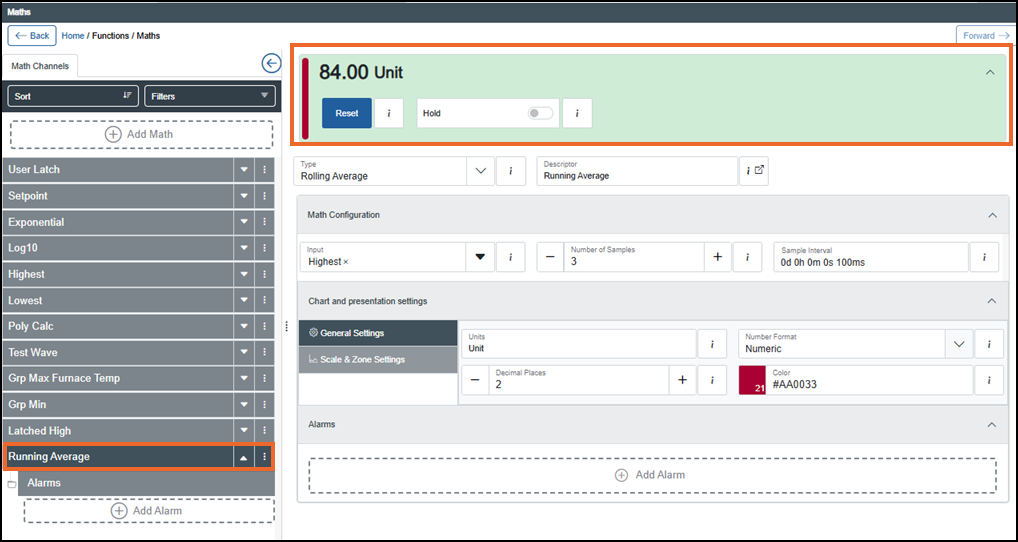
-
Reset - Restarts the calculation of the Rolling Average. The Reset Confirmation screen displays. Select Reset to confirm:
Note - You can only access this function if you have the Can reset Maths permission. If you need to access this function and do not have the permission, please contact your system administrator. -
Hold - When On
, input sampling stops and holds the last calculated output value of the Rolling Average.Note - You can only access this function if you have the Can hold Maths permission. If you need to access this function and do not have the permission, please contact your system administrator.
For example, if the three most recent sample values of temperature during the interval time were as follows:
Sample 1 = 40 °C (104 °F), Sample 2 = 52 °C (125.6 °F), Sample 3 = 47 °C (116.6 °F), then the Rolling Average output is 46.3 °C (115.34 °F). The output is continuously updated (based on the configured number of samples and sampling interval) unless Hold is active or the output is reset.
If Reset is activated, and the next three temperature samples are 43 °C (109.4 °F), 51 °C (123.8 °F) and 48 °C (118.4 °F) , the new Rolling Average output is 47.3 °C (117.14 °F).
Sample and Hold
A Sample and Hold Maths channel samples the input on demand and holds the sampled value at the output until another sample is requested or the output is reset.
The Operator panel displays the live Sample and Hold value and lets you reset the value:
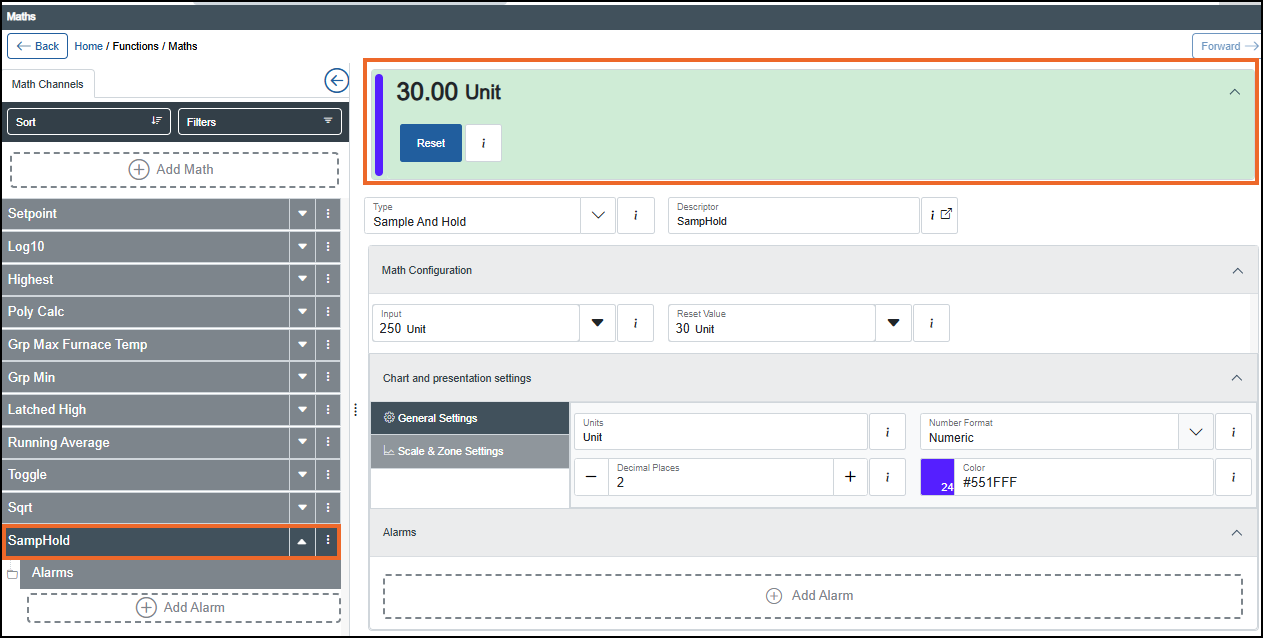
-
Reset - Resets the Output value to the Reset Value set during the configuration time. When selected, the Reset Confirmation screen displays. Select Reset to confirm:
Note - Reset overrides Sample.Note - You can only access this function if you have the Can sample Maths and Can reset Maths permissions. If you need to access these functions and do not have the permission, please contact your system administrator.
For example, if a temperature sensor reads 45 °C (113 °F), then 40 °C (104 °F), then 42 °C (107.6 °F) over a 3- minute period :
At Minute 1, when Sample is activated (enabled), the Output is set to 45 °C (113 °F).
At Minute 2, when no new sample is requested, the Output remains at 45 °C (113 °F).
At Minute 3, when Sample is activated again, the Output updates to 42 °C (107.6 °F).
When Reset is selected, the Output is set to the configured Reset Value.
Switch
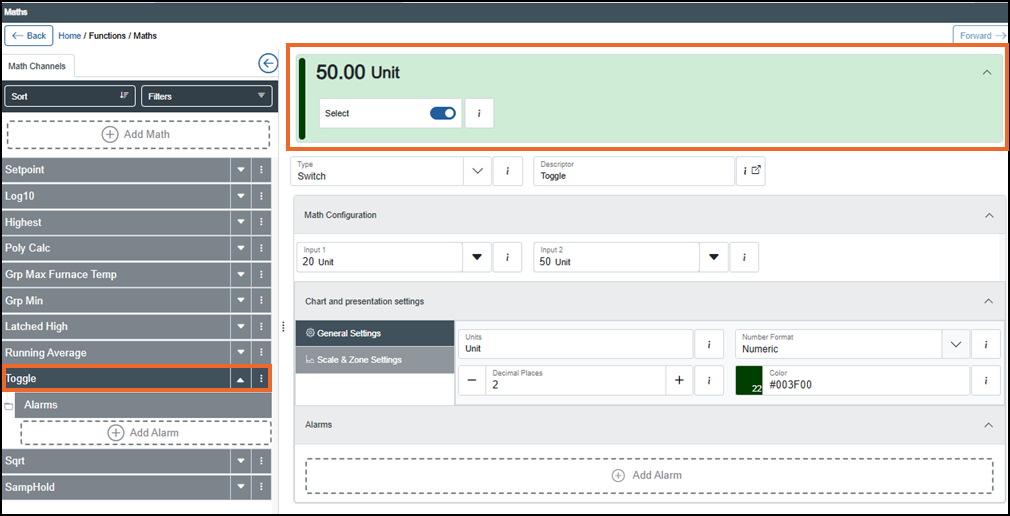
A Switch Maths channel selects one of two input values as the output based on the state of the Select input.
The Operator panel displays the live Switch value and lets you view/control which input is effectively selected:
-
Select - Specifies which input the Switch Maths channel uses as the output. When Select is On
 , Input 2 is selected. When Select is Off
  , Input 1 is selected.
For example, if Input 1 = 20 and Input 2 = 50, then:
-
When Select is Off
 , the output is 20.
-
When Select is On
, the output is 50.
-
Last update - September 2026