Sorting and Filtering the Jobs
By default, the left-hand pane of the Jobs screen displays all Jobs in the order they were created..
Sorting Jobs
To sort Jobs by either descending or ascending alphabetical order:
-
From the EPM User Interface screen, select Options
 - Functions - Jobs: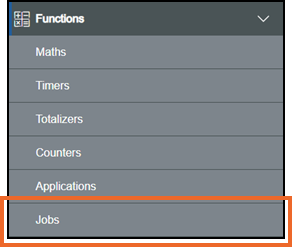
-
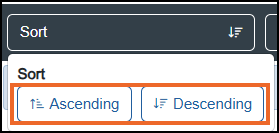
Select Sort and then either:
-
Ascending to display 1 to 9, then A to Z, or
-
Descending to display 9 to 1. then Z to A:
-
Sort  displays with dark gray text when a Sort is unavailable.
Sort 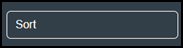 displays in dark gray when a Sort is available.
Sort 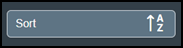 displays in light gray when a Sort is active with the selected order.
Filtering Jobs
To filter the Jobs list:
-
From the EPM User Interface screen, select Options
- Functions - Jobs
-
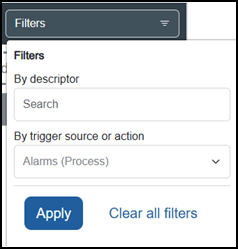
The Jobs screen displays, select Filters:
-
Now either:
-
Enter the name of the Job(s) required in to By descriptor, the Job list updates automatically as you type, select the Jobrequired from the list.
Or
-
From By trigger source or action select the available list
 and select the trigger source or action required:
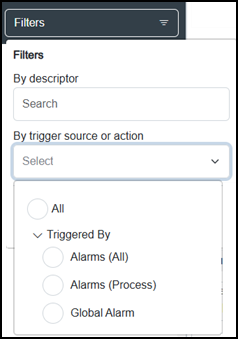 Note - The options on the filter list vary depending on your system configuration, for example, if Batch is not configured, it does not display.
-
-
Select Apply
 to apply the selected filter.
Clearing All Filters
To clear filters applied and display all Jobs:
-
From the Jobs screen, select Filters:
-
Select Clear all filters and then select Apply
.
Last update - April 2026