Editing Jobs
Note - You can only access this function if you have the Can access Jobs permissions. You can only add or update a Job if you have the Can configure permission. If you need these permissions and do not have them, please contact your system administrator.
To edit an existing Job:
Tip - If a Job and action were added directly from a channel, a blue banner notifies you that you can only change or delete the Job from the channel it is attached to:

Navigate to the relevant channel to update or delete any Job or Action as required.
Navigate to the relevant channel to update or delete any Job or Action as required.
-
From the EPM User Interface screen, select Options
 - Functions - Jobs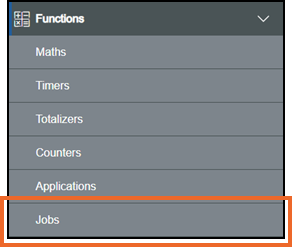
-
The Jobs screen displays. From the list in the left-hand pane, select the Job required and the details display in the right-hand pane
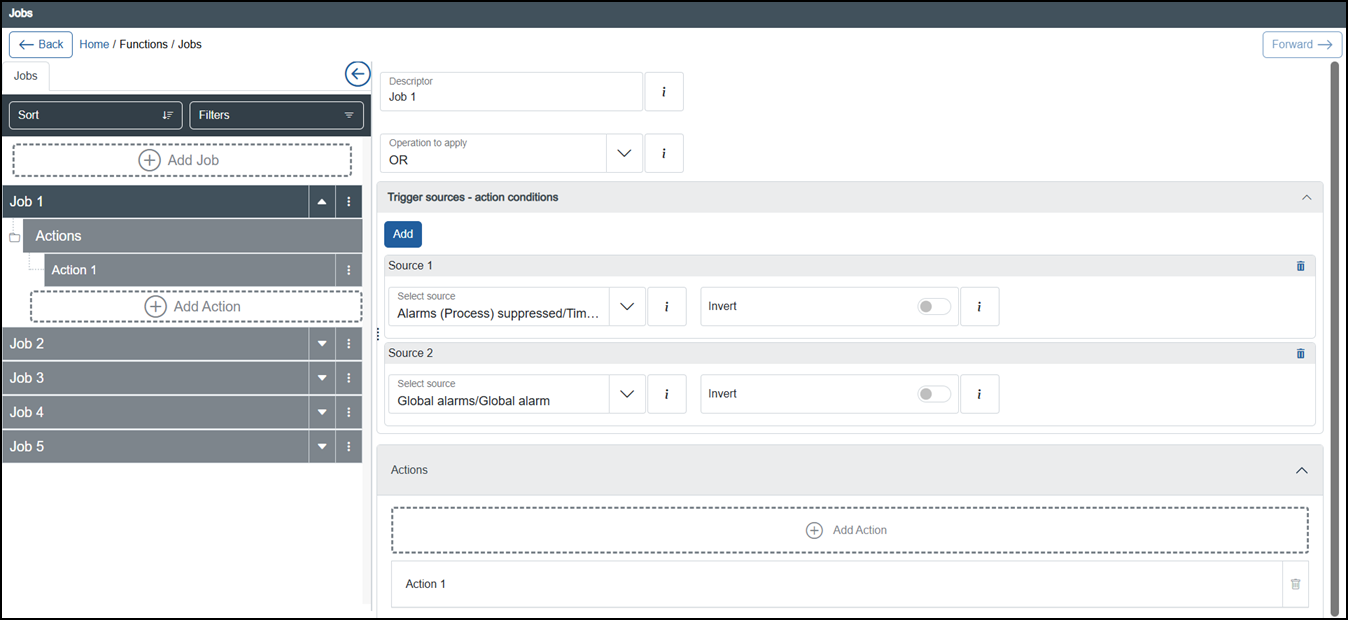 Note - Jobs with actions configured display a down arrow
 , select to display the actions and an up arrow
  displays.Tip - Remember you can use Sort or Filters to find a specific Job, see Sorting and Filtering the Jobs for details.
 -
Complete as required, see Configuring Jobs for details..
Tip - Remember one of your sources can be an existing Job and you may want to select Invert, it is Off by default, but you can select to mark this as an Absent source
  .
. -
Once complete, select Review pending changes
 screen to review updates to the configuration, and submit them. See Reviewing and Submitting Changes for details if required.Note - Reviewing and submitting can be completed in bulk once you have completed all your additions and/or updates.
Last update - April 2026