Deleting Jobs
To delete a Job from your system:

Navigate to the relevant channel to update or delete any Job or Action as required.
-
From the EPM User Interface screen, select Options
 - Functions - Jobs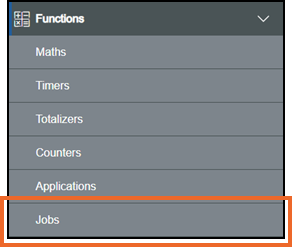
-
The Jobs screen displays, locate the Job to delete
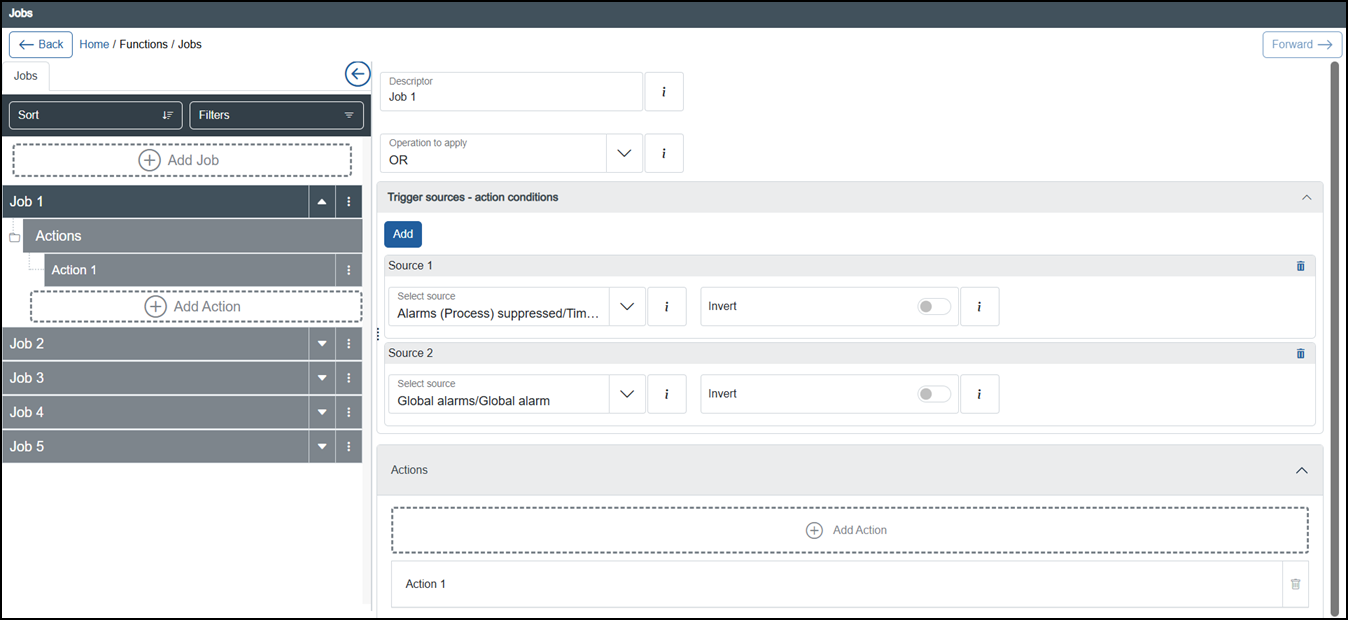 Tip - Remember you can use Sort or Filters to find a specific Job, see Sorting and Filtering the Jobs for details.
 -
From the left-hand pane, select Options
 - Delete on the Job no longer required: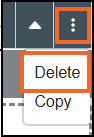
-
The Delete Job screen displays:
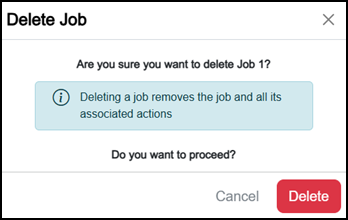
Select Delete
 .
. -
Once complete, select Review pending changes
 screen to review updates to the configuration, and submit them. See Reviewing and Submitting Changes for details if required.Note - Reviewing and submitting can be completed in bulk once you have completed all your additions and/or updates.
The Job is removed from the available list.
Last update - April 2026