Configuring Logged Out Screens from the EPM User Interface
One of the default roles provided is Logged out. From here you can configure the functions that can be accessed without having to log into a device
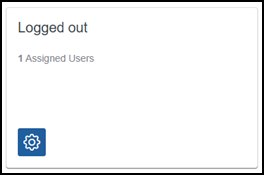
To configure the functions that can be accessed without a user being logged in:
-
From the EPM User Interface screen, select Options
 - Settings and Users - Roles.
 -
The Roles screen displays, from the Logged Out card, select Edit
 and the Edit role pane displays on the right-hand side of your screen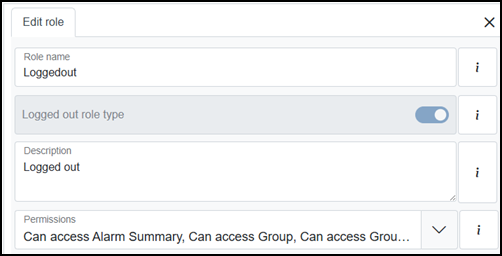
-
Update the following if required:
Note - Logged out role type cannot be updated.-
Role name - Update with a new name if appropriate.
-
Description - Defaults to 'Logged out', update if required.
-
-
From Permissions, select Expand
 and by expanding each section, tick the permissions that you do not require a user to log in to access.See Role Permissions for a full list of available permissions.
 -
Once complete, select Review pending changes
 screen to review updates to the configuration, and submit them. See Reviewing and Submitting Changes for details if required.Note - Reviewing and submitting can be completed in bulk once you have completed all your additions and/or updates.
Last update - April 2026