Acknowledging Alarms
You must Acknowledge an alarm to record that it has been recognized and appropriate action taken.
To acknowledge an alarm:
-
From the EPM User Interface screen, select either:
-
The relevant on-screen alert, for example
 , or
, or -
Select Options
 - Alarms - Alarm Summary: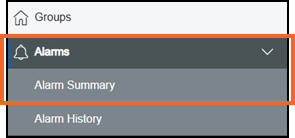
-
-
The Alarm Summary screen displays:
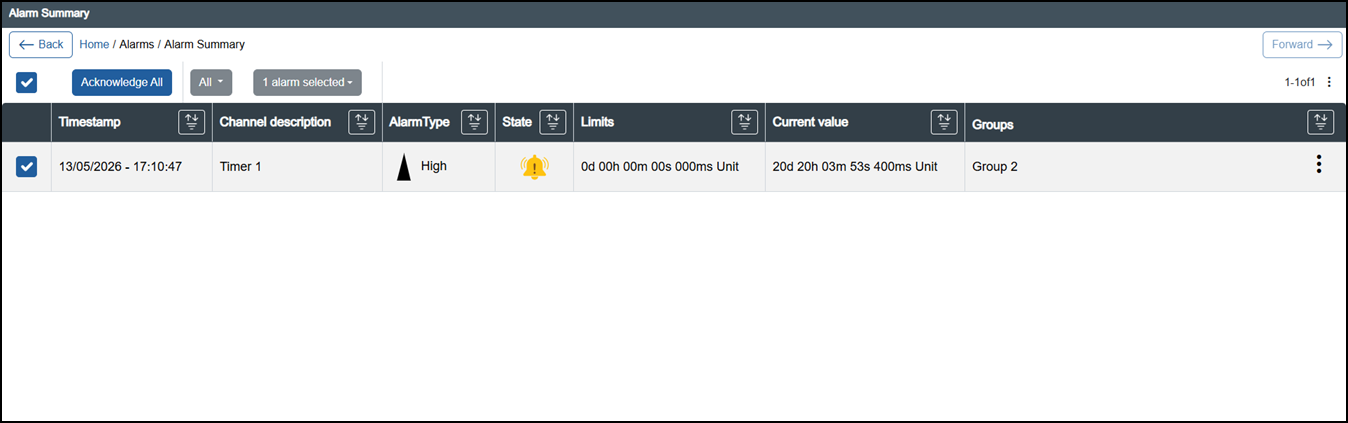
From the left-hand side of the alarm line, tick
 the alarm(s) to Acknowledge. To acknowledge all alarms, including those not currently visible on the screen, select the tick box above the list of alarms
  .Tip - If you want to acknowledge more than 50% of the alarms, it may be quicker to select Select All and then deselect the alarms that are not required.
 -
Select Acknowledge
 , or if you have selected to Acknowledge all alarms, Acknowledge All
  .
. -
The Acknowledge alarms - Are you sure? message displays which shows the logged in user and the current date and time. Enter any comments required, for example, the action taken:
Tip - If you are registered for 21CFRpt11, enter the appropriate comments, if you are not 21CFRpt11 registered, comments are optional, but can be useful.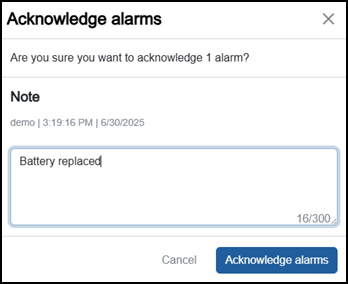
-
Select Acknowledge alarms
 .
.
A 'n alarms acknowledged' message briefly displays, where 'n' is the number of alarms you have acknowledged:
-
Acknowledged alarms where triggering conditions are no longer met, no longer display.
-
Acknowledged alarms where triggering conditions are still met, display with a constant symbol.
Acknowledged alarms can be viewed from the Historic view, Group messages screen or Data Reviewer.
Last update - June 2026