Understanding the Status Bar
The status bar, at the top of an EPM User Interface (EPM UI) screen, is populated with symbols designed to provide information about devices and processes, for example, alarm status and batch details (where enabled). It also provides you with the option to navigate to different recording groups and user settings:

| Symbol | Description |
|---|---|

|
Options - Select to navigate to through EPM Data Management. |

|
Login - Select to log in using a user name and password. |

|
Username - Displays the user currently logged in to this device, select the down arrow  to log out or change your password. to log out or change your password. |

|
USB- Indicates a FAT32 formatted flash drive is connected into the USB-C 2 port at the rear of therecorder. |

|
Archive in progress - Indicates an archive to a flash drive in the USB-C 2 port is currently in progress. |

|
Configuration Locked- Indicates the configuration is locked to a user, and thus only editable by that user, select to display the details of which user currently has the lock or to release if you are holding it. |

|
Invalid Configuration - Indicates the configuration is invalid. |

|
Real Time Clock Battery - Displays when the device real time clock (RTC) battery level is low enough to indicate replacement is required, or if the battery is missing or inserted incorrectly. Immediate battery replacement is highly recommended, see Replacing the Real Time Clock (RTC) Battery for details. |
Alarms
A flashing icon indicates there are one or more unacknowledged alarms. The icon appears steadily illuminated when all the alarmsareacknowledged.
To acknowledge an alarm, select the alarm indicator to open the Alarm Summary screen, or go to OptionsAlarms - Alarm Summary:
| High Priority | Medium Priority | Low Priority | |
|---|---|---|---|
| Unacknowledged Process Alarms (flashing) |

|

|

|
| Unacknowledged Process Alarm triggered but no longer active (flashing) |

|

|

|
| Acknowledged Process Alarm still in Alarm |

|

|

|
| Unacknowledged System Alarms (flashing) |

|

|

|
| Unacknowledged System Alarm triggered but no longer active (flashing) |

|

|

|
| Acknowledged System Alarm still in Alarm |

|

|

|
Batch Status
The Batch Status panel displays an 'at a glance' carousel of the batches on the system:
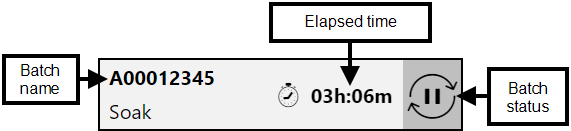
- Batch name - Displays the batch name.
- Elapsed time - Displays one of the following:
- Where a batch is running, the current running time taken.
- Where a batch is complete, the time taken to run.
- Batch status - Displays one of the following:
Batch Symbol Batch Status 
Stopped 
Running 
Paused 
Idle 
In transition Saved Displays on the Batch Summary screen only, batch defined and ready to run.
Select the Batch Status panel to display the Batch Summary screen, see Using the Batch Summary Screen for details.
Login or Logged in User
If no-one is logged on to this device Login displays, select to log in to this device.
If someone is logged on, their user name displays .