Navigating the EPM User Interface
The EPM User Interface is an innovative, intuitive, touch-sensitive display, designed to enable operators to clearly view process data in varying formats.
The screen consists of:
-
A status bar which includes the title of the current screen:
 See Understanding the Status Bar for details.
 -
A central pane, which includes the navigation location of the current screen and a Back
 and Forward
  to aid movement through the system.Tip - The Groups screen displays by default.
 -
An Options menu
 providing links to all aspects of your EPM User Interface: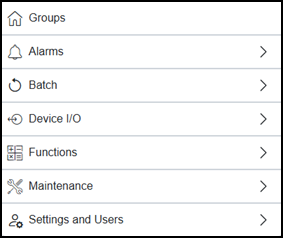
-
Groups - See Groups for details.
-
Alarms - See Configuring an Alarm and Alarms for details.
-
Batch - See Batch for details.
-
Views - See Groups for details
-
Device I/O - See I/O Channels and Modules for details.
-
Functions - See Maths, Timers, Totalizers, Counters, Applications and Jobs for details.
-
Maintenance - See Maintenance for details.
-
Device and users - See Configuring Settings and Managing Users from the EPM User Interface for details.
-
-
Onscreen tooltips are available to help you configure and use your EPM device. Select Information
 to display them: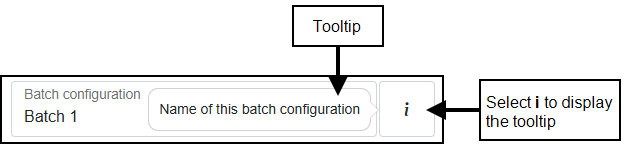
-
Cross screen functionality:
-
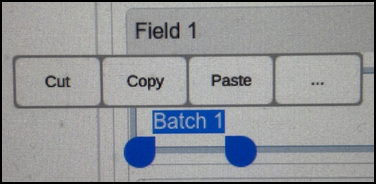
When in Configuration mode, from any field that is completed with free text, you can Cut, Copy and Paste the text:
-
From an EPM Device- Double click on the text required. The text highlights in blue with indicators underneath and an options menu above. Drag the indicators to change the highlighted text if appropriate and then select the action required:
-
From a computer screen - Single click or click, hold and drag to highlight the text required. Right click on the highlight and select Cut or Copy as required.
You can now move to the screen and/or field required, and:
-
From an EPM Device - Double click the destination for your text and select Paste.
-
From a computer screen - Right click on the destination for your text and select Paste.
-
-
Last update - April 2026