Discovering I/O Modules
You can use the Discover modules feature to ensure that the configuration of the hardware installed matches the expected configuration. This process helps identify discrepancies between installed and configured modules, and any hardware issues.
To discover I/O modules:
-
From the EPM User Interface screen, select Options
 - Device I/O - Hardwired I/O: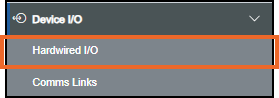
-
The Hardwired I/O screen displays, select Local - Discover modules:
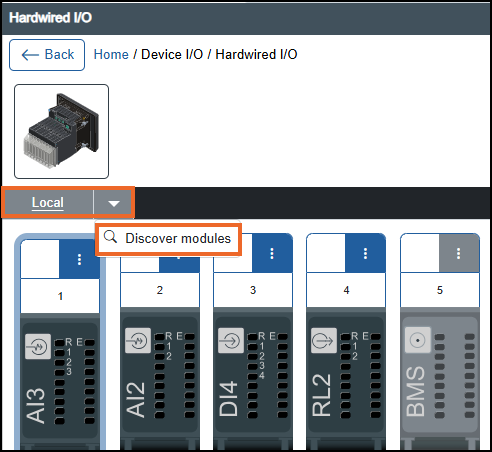 Tip - Select Expand
 or Collapse
  to show or hide any images: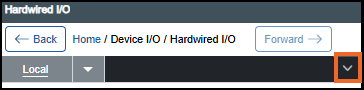
-
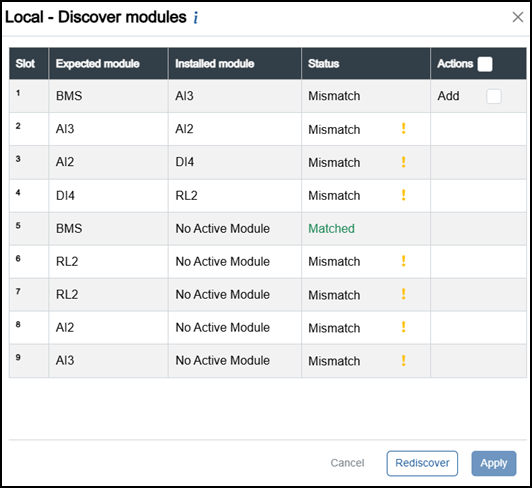
The Local - Discover modules screen displays showing the expected module configuration versus what is currently installed in the device:
Complete as required:
-
Slot - Position where the module is installed.
-
Expected module - Type of module configured in a slot.
Tip - Remember, these are the modules you have added in the system configuration (not the physical hardware), see Adding I/O Modules for details. -
Installed module - Type of hardware module physically installed in a device’s slot.
-
Status - Indicates whether the expected module matches the installed module:
-
Matched - The expected module type matches the installed module type in a slot.
-
Mismatch - The expected module type and the installed module type in a slot are different.
To resolve this, you have the following options:
-
Where the Expected module is BMS (Blank Module Single), select Add
 under the Actions column to update the expected module to match the installed module.
 -
Where there is a mismatch warning with an exclamation mark
 , you can either:
-
Replace the installed hardware module on the device to match the expected configuration, then discover modules again, or
-
Select Options
- Device I/O - Hardwired I/O configuration screen and update the module types (add, move or delete) as required, then discover modules again.
-
-
-
-
Actions:
-
Add - Tick to add an appropriate module type to resolve a mismatch.
-
-
-
Select Apply to add modules if any are added.
-
Select Rediscover to refresh the Local - Discover modules screen after changing the installed hardware module on the device. This ensures that any changes are detected and accurately reflected in the Status column.
-
Select Cancel to exit the Local - Discover modules screen without any changes.
-
Once complete, select Review pending changes
 screen to review updates to the configuration, and submit them. See Reviewing and Submitting Changes for details if required.Note - Reviewing and submitting can be completed in bulk once you have completed all your additions and/or updates.
Last update - February 2026