Removing I/O Modules
When you remove an I/O module, any dependent configuration is updated to maintain data integrity and prevent broken references as explained below:
-
When you delete a module, the module and its associated channels are removed. If any of those channels are part of a group, they are removed from that group.
-
Only Alarms or Jobs attached exclusively to those channels are deleted. Shared Alarms or Jobs are retained.
-
If the module contains calibrated channels, a warning displays before deletion because calibration data may be affected.
| NOTICE |
|---|
|
RISK OF DATA LOSS OR CORRUPTION
Failure to follow this instruction can result in data loss |
To remove an I/O module:
-
From the EPM User Interface screen, select Options
 - Device I/O - Hardwired I/O: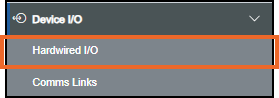
-
The Hardwired I/O screen displays, on the module no longer required, select Options
 - Remove:
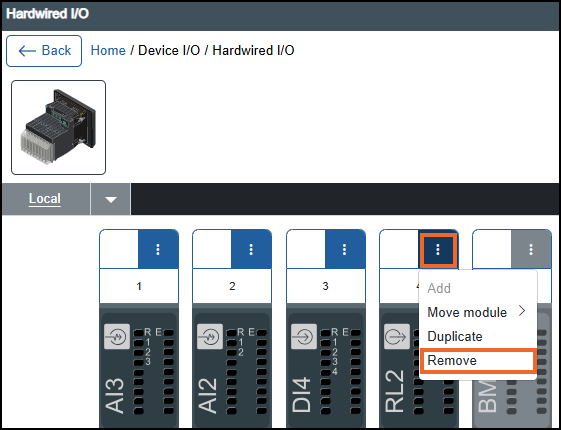
-
If you are not already in Configuration lock, the Configuration lock screen displays
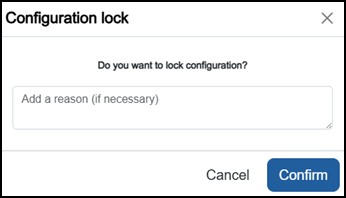
Enter a reason if required and then select Confirm
 . The system configuration is now locked pending the submission of your update and the Configuration Locked
  icon displays on the status bar.Note - Configuration lock does not affect the operation of the EPM device.See Configuration Lock for details.
 -
The Remove Module screen displays, select either:
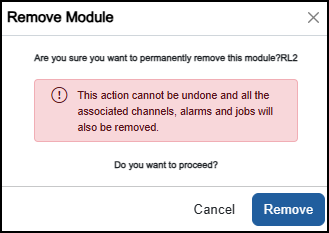
- Cancel to exit without making any changes, or
-
Remove to confirm.
The selected module, along with its channels, Alarms or Jobs, is now removed from the view.
Note - Only Alarms or Jobs attached exclusively to this module are deleted. Shared Alarms or Jobs are retained. -
Once complete, select Review pending changes
 screen to review updates to the configuration, and submit them. See Reviewing and Submitting Changes for details if required.Note - Reviewing and submitting can be completed in bulk once you have completed all your additions and/or updates.
Last update - May 2026