Configuring Actions
An Action defines the response to a Job being triggered.
To add an Action:

Navigate to the relevant channel and attached Job to add an Action, and start from step 5 below.
-
From the EPM User Interface screen, select Options
 - Functions - Jobs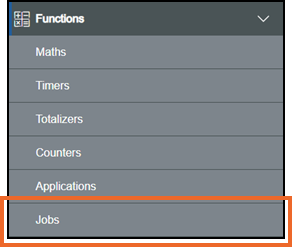
-
The Jobs screen displays. Select the Job required from the list in the left-hand pane, see Sorting and Filtering the Jobs if required for details.
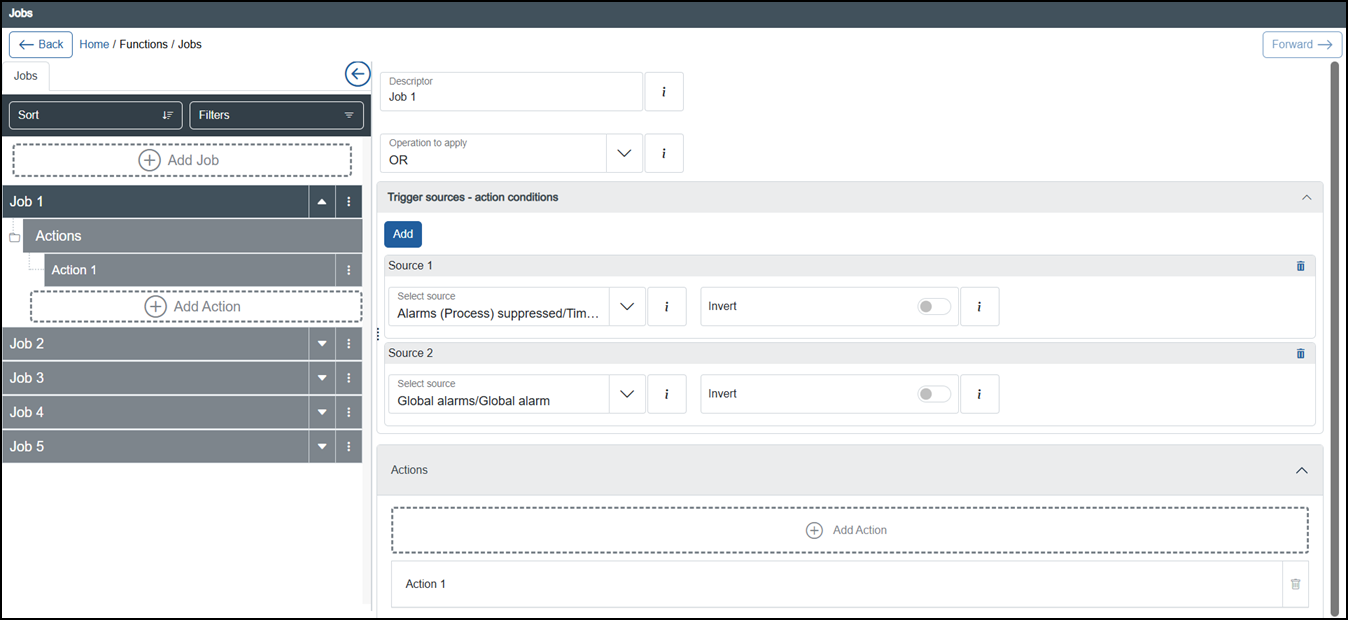 Tip - Jobs with Actions attached display a down arrow
 . Select Expand to display the alarms and Collapse
  to hide them.
 -
The details of the Job display in the right-hand pane. From the bottom of the right-hand pane, select Add Action
 .
. -
If you are not already in Configuration lock, the Configuration lock screen displays
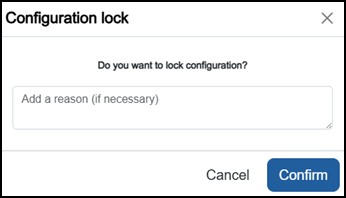
Enter a reason if required and then select Confirm
 . The system configuration is now locked pending the submission of your update and the Configuration Locked
  icon displays on the status bar.Note - Configuration lock does not affect the operation of the EPM device.See Configuration Lock for details.
 -
The Action options now display, complete as required:
Tip - The options available depend on your configuration.- Descriptor - Defaults to 'Action n' where 'n' starts at '1' and rises by one sequentially. Update if required.
-
Category - Defaults to Acknowledge All Alarms, select from the available options:
- Acknowledge Alarm - If selected, when this Job triggers, it automatically acknowledges a specific alarm:
- Select alarm - Select the alarm to acknowledge from the available list.
- Acknowledge All Alarms - If selected, when this Job triggers, it automatically acknowledges all unacknowledged alarms across EPM Data Management.
- Acknowledge Channel Alarm - If selected, when this Job triggers, it automatically acknowledges unacknowledged alarms for the channel specified in Select channel:
- Select channel - Select the channel alarm to acknowledge from the available list.
- Acknowledge Group Alarm (specified) - If selected, when this Job triggers, it automatically acknowledges unacknowledged alarms for the group specified in Select group:
- Select group - Select the group alarm to acknowledge from the available list.
- Archive - If selected, when this Job triggered, it automatically triggers the selected action for the Archive, select from:
- Archive Destination Type - Select where to archive to:
- Local - A flash drive inserted into your device, or
- Remote - An archive server configured from Settings, seeConfiguring Archive Servers for details.
- Select an action - Select the action required:
- Cancel - To cancel the archive.
- Last Hour - To archive data from the last hour.
- Last Day - To archive data from the last 24 hours.
- Last Week - To archive data from the last 7 days.
- Last Month - To archive data from the last 31 days.
- Archive Destination Type - Select where to archive to:
- Batch - If selected, when this Job triggers, it automatically triggers the following for the Batch specified:
- Select an action - Select the action required:
- Pause
- Resume
- Start
- Stop
- Select batch - Select the Batch to apply this action to from the available list.
- Select an action - Select the action required:
- Counter - If selected, when this Job triggers, it automatically triggers a specific counter:
- Select an action - Select the action to apply to the specified counter from the available list:
- Decrement
- Hold/Resume
- Preset
- Reset
- Increment
- Select counter - Select the counter to apply the action to from the available list.
- Select an action - Select the action to apply to the specified counter from the available list:
- Drive Output (Digital) - If selected, when this Job triggers, it automatically triggers a specific drive output (digital):
- Select Drive Output (Digital) - Select the drive output to apply the action to from the available list.
- Math - If selected, when this Job triggers, it automatically applies the selected action to a specific Math channel:
- Select an action - Select to Hold/Resume, Reset, Sample or Switch the specified Math channel.
- Select Math - Select the Math channel to apply the action to from the available list.
- Application Functions - If selected, when this Job triggers, it automatically applies the selected action to a specific Application channel:
- Select an action - Select Reset.
- Select Application Function - Select the Application to apply the action to from the available list.
- Suppress Alarm - If selected, when this Job triggers, it automatically suppresses a specific alarm:
- Select alarm - Select the alarm to suppress from the available list.
- Timer - If selected, when this Job triggers, it automatically applies the selected action to a specific Timer:
- Select an action - Select to Start, Hold/Resume or Reset the specified Timer.
- Select timer- Select the Timer to apply the action to from the available list.
- Totalizer - If selected, when this Job triggers, it automatically applies the selected action to a specific Totalizer:
- Select an action - Select to Hold/Resume, Preset or Reset the specified Totalizer.
- Select Totalizer - Select the Totalizer to apply the action to from the available list.
- Watchdog Relay - If selected, when this Job triggers, it automatically
- Acknowledge Alarm - If selected, when this Job triggers, it automatically acknowledges a specific alarm:
- Invert - Off
 by default, select On
  to create a reverse Action.
-
Once complete, select Review pending changes
 screen to review updates to the configuration, and submit them. See Reviewing and Submitting Changes for details if required.Note - Reviewing and submitting can be completed in bulk once you have completed all your additions and/or updates.
Last update - April 2026