Deleting a Timer Channel
To delete a Timer channel:
- From the EPM User Interface screen, select Options
 - Functions - Timers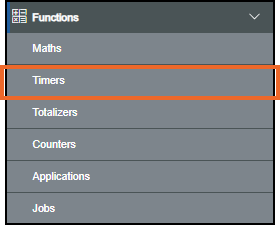
- The Timers screen displays
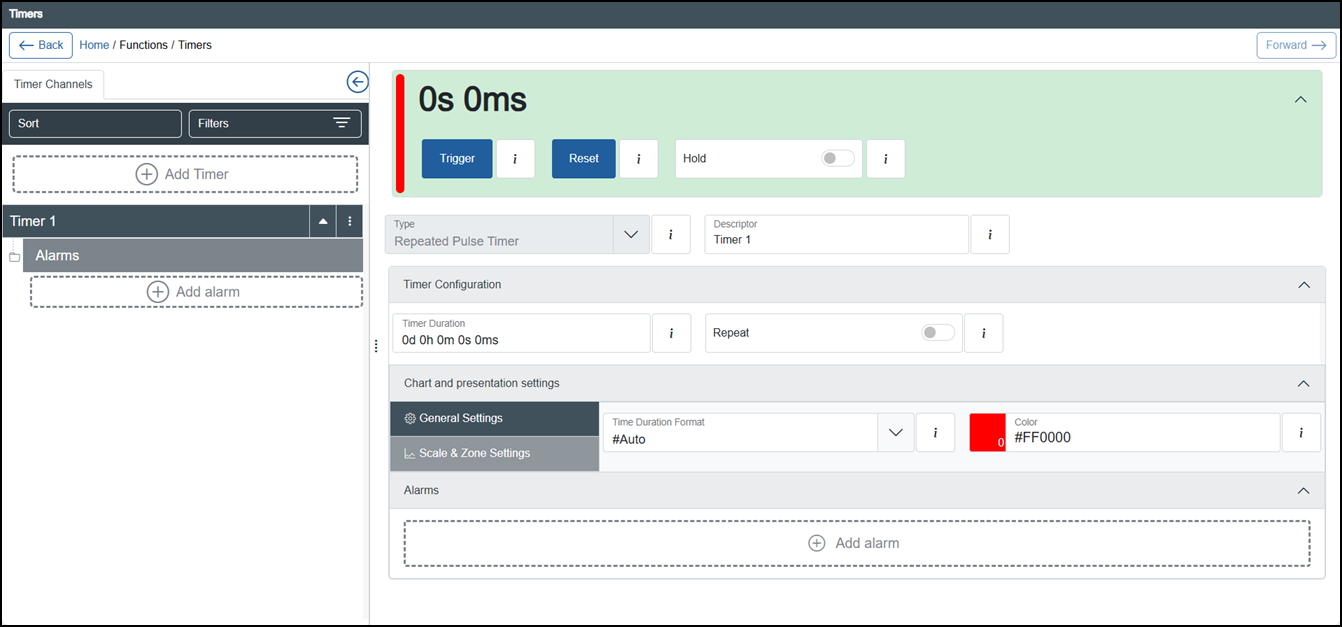
From the list in the left-hand pane, locate the timer to delete.
Tip - You can use Sort or Filters to find a specific timer, see Sorting and Filtering Timers for details. -
Select Options
 - Delete on the timer no longer required: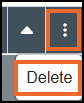
-
If you are not already in Configuration lock, the Configuration lock screen displays
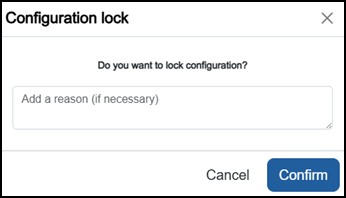
Enter a reason if required and then select Confirm
 . The system configuration is now locked pending the submission of your update and the Configuration Locked
  icon displays on the status bar.Note - Configuration lock does not affect the operation of the EPM device.See Configuration Lock for details.
 -
The Delete Channel screen displays:
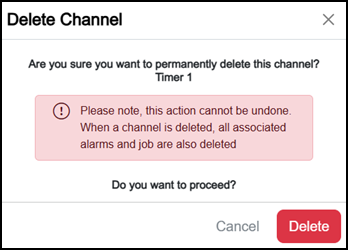
Select either:
-
Cancel to return to the Timers screen, or
-
Delete
 to confirm.
-
-
Once complete, select Review pending changes
 screen to review updates to the configuration, and submit them. See Reviewing and Submitting Changes for details if required.Reviewing and submitting can be completed in bulk once you have completed all your additions and/or updates.
Last Update - February 2026