Editing a Timer Channel
To edit the configuration of an existing Timer channel:
-
From the EPM User Interface screen, select Options
 - Functions - Timers: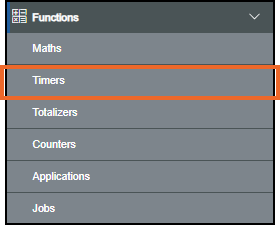
- The Timers screen displays. From the list on the left-hand side, select the timer required and the details display on the right-hand side:
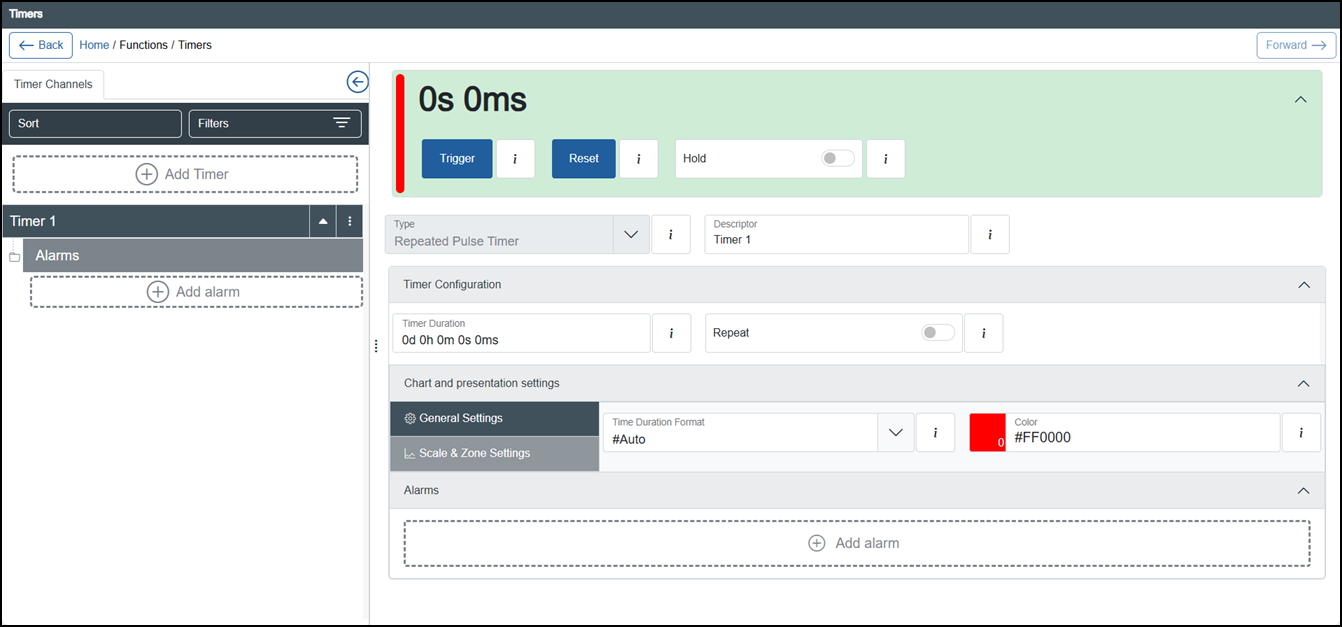 Note - Timers with alarms configured display a down arrow
 , select to display the alarms and an up arrow
  displays.Tip - You can use Sort or Filters to find a specific timer, see Sorting and Filtering Timers for details.
 -
If you are not already in Configuration lock, the Configuration lock screen displays
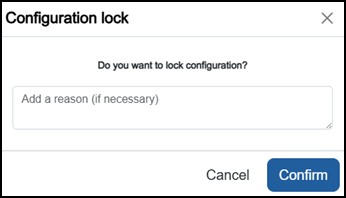
Enter a reason if required and then select Confirm
 . The system configuration is now locked pending the submission of your update and the Configuration Locked
  icon displays on the status bar.Note - Configuration lock does not affect the operation of the EPM device.See Configuration Lock for details.
 -
Update as required, but note the following, if you update the:
-
Type - The Change function screen displays advising you of the sections that are retained, select Confirm
to continue: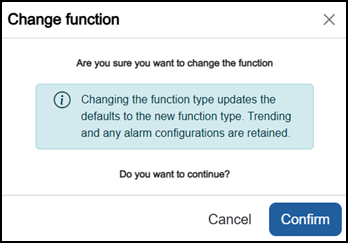
-
Duration whilst a Timer is running and:
-
the new duration is less than the running timer value, the timer is set to the new duration and is considered expired immediately.
-
the new duration is greater than the current timer value and the timer is still running, the timer continues running as it is; no changes are made.
-
the new duration is greater than the current timer value and the timer has expired, the timer restarts and counts up from its current value until it reaches the new duration.
See Configuring a Repeated Pulse Timer Channel and Configuring a Stop Watch Timer Channel for details.
-
-
-
Once complete, select Review pending changes
 screen to review updates to the configuration, and submit them. See Reviewing and Submitting Changes for details if required.Note - Reviewing and submitting can be completed in bulk once you have completed all your additions and/or updates.
Last update - June 2026