Groups
The Groups screen is the primary landing screen for the EPM User Interface. A Group manages recorded and displayed data as a set, including the channels linked to it. You can add up to 30 Groups. A Group displays data in multiple ways such as a Bar Chart, Line Chart and Historic View.
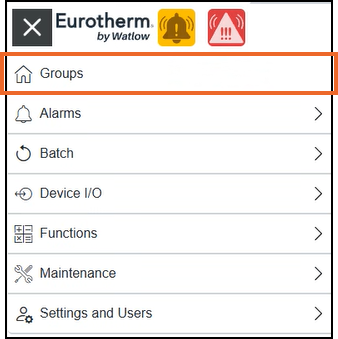
To access the Groups screen, from the EPM User Interface, select Options  - Groups:
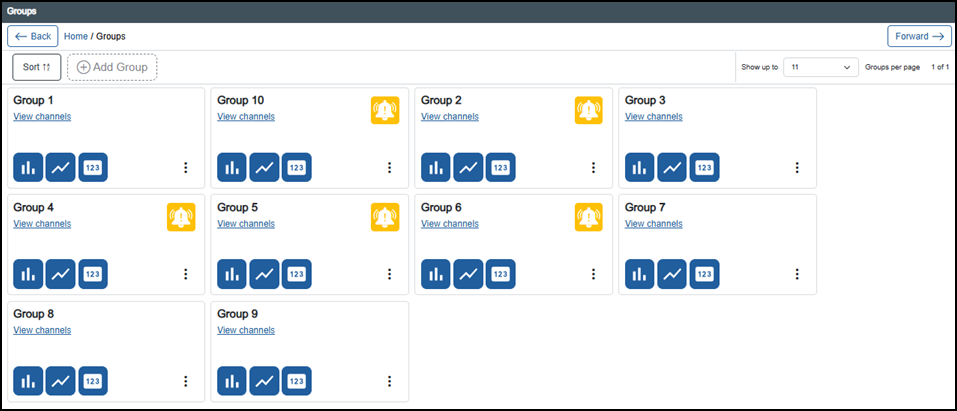
The Groups screen displays providing the following features:
-
Sorting
 - Sorts Groups by descriptor (Group name) in alphanumeric order: 1 to 9, then A to Z.
 -
Adding a Group - You can add up to 30 Groups, see Adding a Group for details. Once you add a Group, you can associate channels to a Group to record, visualize and annotate data. The maximum number of channels that can be added to a Group is 64, see Adding a Channel to a Group for details.
-
Viewing Group Channels - Displays channels within a Group. From here, you can add, move or delete channels related to a Group. See Viewing Group Channels for details.
-
Recording - By default, recording is enabled for all newly created Groups. You must explicitly disable recording where available, if you do not want that Group’s data written to .uhh. When you disable the recording, Recording Disabled
 appears on the relevant Group card. See Configuring Groups Settings for details.
 -
Viewing Messages - Displays recorded messages and event entries for a Group. See Viewing Group Messages for details.
-
Configuring Group Settings - Setting Group properties such as data recording, chart views, for example, bar, line and numeric. See Configuring Groups Settings for details.
-
Viewing Bar Chart
 - Displays live data for the Group in a Bar Chart format. See Using the Live View for details.Note - If the Bar Chart view is disabled in the Live View - Groups Settings, the Group card only displays the Line Chart and Numeric Chart icons.
 -
Viewing Line Chart
 - Displays live data for the Group in a line chart format. See Using the Live View for details.
 -
Viewing Numeric Chart
 - Displays live data for the Group in a numeric chart format. See Using the Live View for details.Note - If the Numeric Chart view is disabled in the Live View - Groups Settings, the Group card only displays the Line Chart and Bar Chart icons.
 -
Accessing Alarms - See Using the Alarm Summary Screen for details.
Last update - July 2026