Adding a Channel to a Group
To add a channel to a Group:
-
From the EPM User Interface screen, select Options
 - Groups: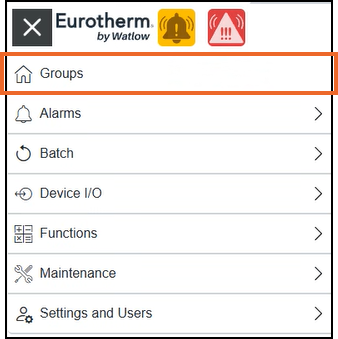
-
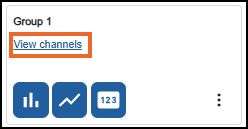
From the Groups screen, identify the required Group card and select View channels:
-
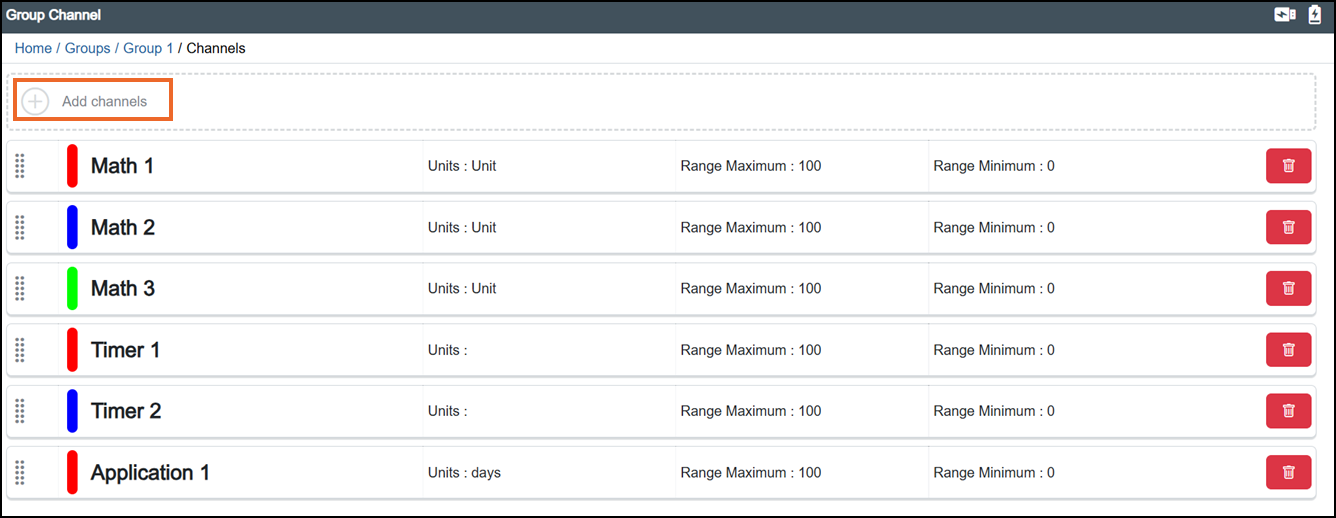
The Group Channel screen displays, select Add channels:
-
If you are not already in Configuration lock, the Configuration lock screen displays
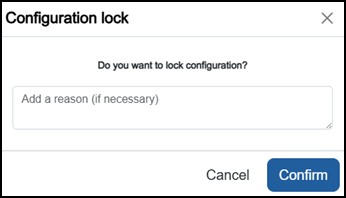
Enter a reason if required and then select Confirm
 . The system configuration is now locked pending the submission of your update and the Configuration Locked
  icon displays on the status bar.Note - Configuration lock does not affect the operation of the EPM device.See Configuration Lock for details.
 -
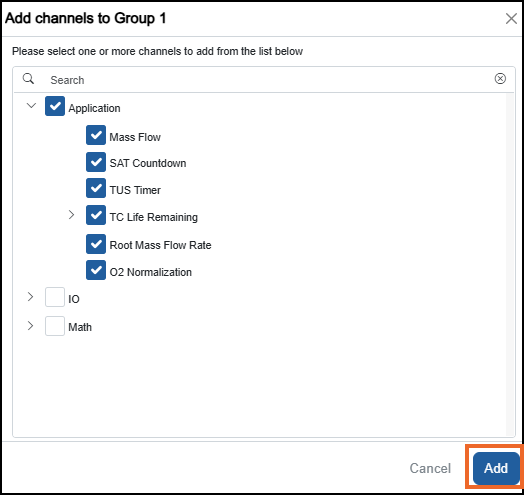
The Add channels to Group < descriptor > screen displays, tick
 all the channels required and select Add to add the selected channel(s) to the Group:
 Tip - Only assign relevant channels to a Group to keep the group organized and easy to manage.Tip - Select Expand
 to view the available options.
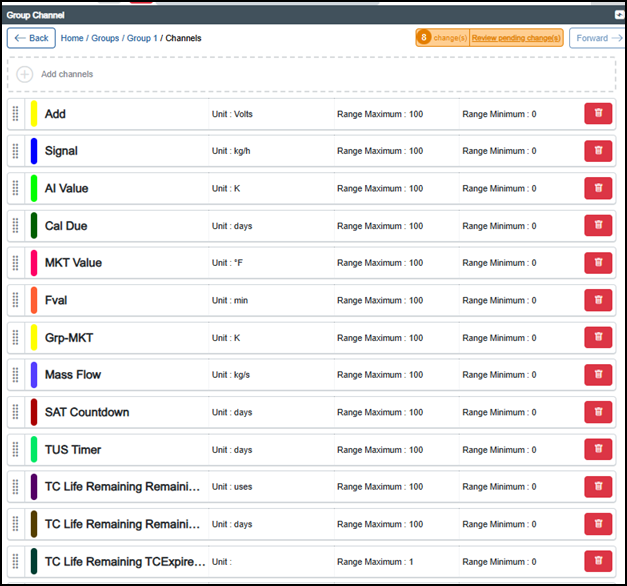
The selected channels now display in the Group Channel list:
-
Once complete, select Review pending changes
 screen to review updates to the configuration, and submit them. See Reviewing and Submitting Changes for details if required.Note - Reviewing and submitting can be completed in bulk once you have completed all your additions and/or updates.
Last update - July 2026