Adding an Application Channel
You can add up to 128 Application channels and assign application types to define how each channel processes input values.
To add a new Application channel:
- From the EPM User Interface screen, select Options
 - Functions - Applications: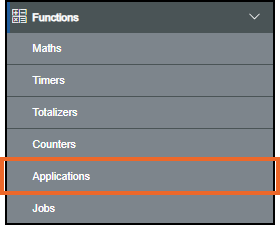
-
The Applications screen displays, from the left-hand side, select Add Application:

-
If you are not already in Configuration lock, the Configuration lock screen displays
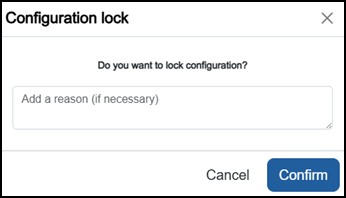
Enter a reason if required and then select Confirm
 . The system configuration is now locked pending the submission of your update and the Configuration Locked
  icon displays on the status bar.Note - Configuration lock does not affect the operation of the EPM device.See Configuration Lock for details.
 -
The Add Channel screen displays, select the required Application channel type from the available list and select Add:
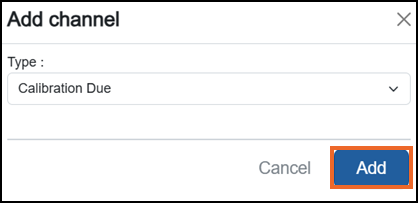
The Application Configuration screen displays in the right-hand side.
Tip - The channel type determines how the channel processes its input values.-
Calibration Due, see Configuring a Calibration Due Application Channel for details.
-
Channel MKT, see Configuring a Channel MKT Application Channel for details.
-
F-Value, see Configuring an F-Value Application Channel for details.
-
Group MKT, see Configuring a Group MKT Application Channel for details.
-
Linear Mass Flow, see Configuring a Linear Mass Flow Application Channel for details.
-
O2 Correction, see Configuring an O2 Correction Application Channel for details.
-
Root Mass Flow, see Configuring a Root Mass Flow Application Channel for details.
-
SAT Due, see for Configuring a SAT Due Application Channel details.
-
Thermocouple Cal Correction, see Configuring a Thermocouple Cal Correction Application Channel for details.
-
Thermocouple Life, see Configuring a Thermocouple Life Application Channel for details.
-
TUS Due, see Configuring a TUS Due Application Channel for details.
-
-
Once complete, select Review pending changes
 screen to review updates to the configuration, and submit them. See Reviewing and Submitting Changes for details if required.Note - Reviewing and submitting can be completed in bulk once you have completed all your additions and/or updates.
Last update - April 2026