Using the Applications Operator Panel
This section describes how to access the Applications Operator panel, monitor live values and perform runtime operations for Application channel types such as Calibration Due, F-Value and SAT Due.
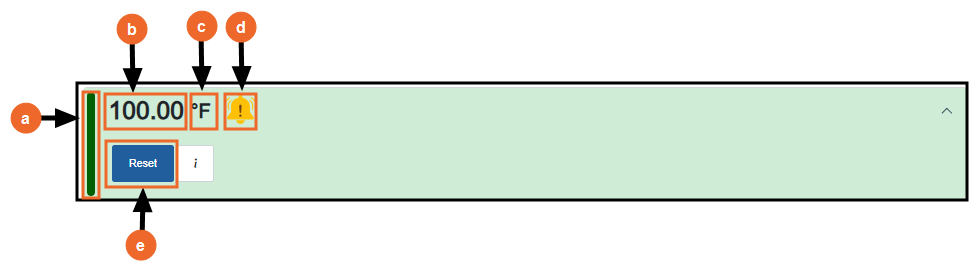
The Operator panel displays the following for a channel:
-
Channel Color - Configured color of the channel, see the Color option in Chart and presentation settings for further details.
-
Live Value/Status - Live output value or current status of the channel. When valid data is available, the Operator panel displays the live output value of a channel, see Criteria for a Valid Value for further details. If the channel cannot calculate a valid value, for example, due to invalid or missing inputs or configuration issues, the Operator panel displays a status message such as Invalid or Off. See Understanding Runtime Status Indicators for further details.
-
Channel Unit - Configured engineering unit of the channel, for example, oC. See the Unit option in Chart and presentation settings for further details.
-
Alarms - Current alarm status of the channel, see Understanding Alarm Symbols for further details. If a Job or Action is associated with the alarm, select the alarm to update it. See Configuring Jobs and Configuring Actions for further details.
-
Runtime operations - Runtime options available for the channel, such as Reset, Hold, or Switch, depending on the channel type, current channel state and user permissions.
Note - Some channels are monitor-only and do not support runtime operations.
To access the Applications Operator panel:
-
From the EPM User Interface screen, select Options
 - Functions - Applications: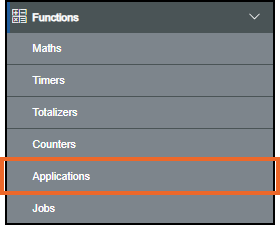
-
The Applications screen displays, from the left-hand side, select the required channel. The Applications Operator panel displays on the right-hand side
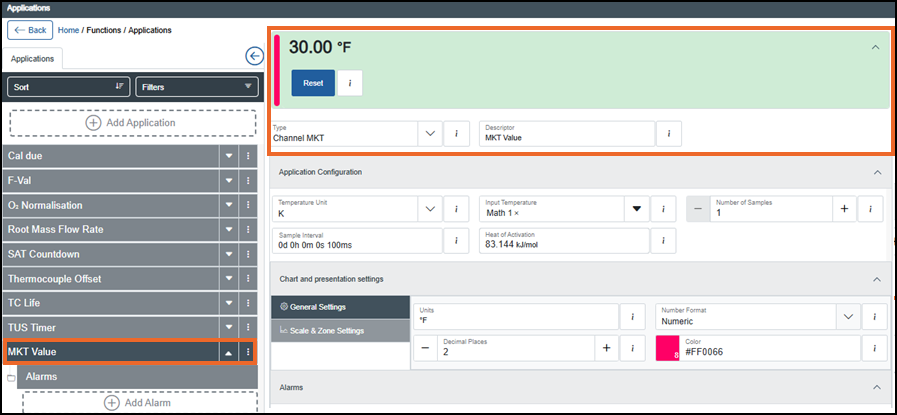
Select from the following options to expand the details:
 Calibration Due
A Calibration Due Application channel indicates when a calibration is needed by counting down from a preset number of days (determined by the option selected in Frequency Source) as specified by the Aerospace Material Specification (AMS) 2750 standard or a user-defined custom value. Calibration must be carried out at a defined frequency/interval in order to comply with the AMS2750 standard. The amount of time between operations is specified depending on the furnace class and instrumentation type being used.
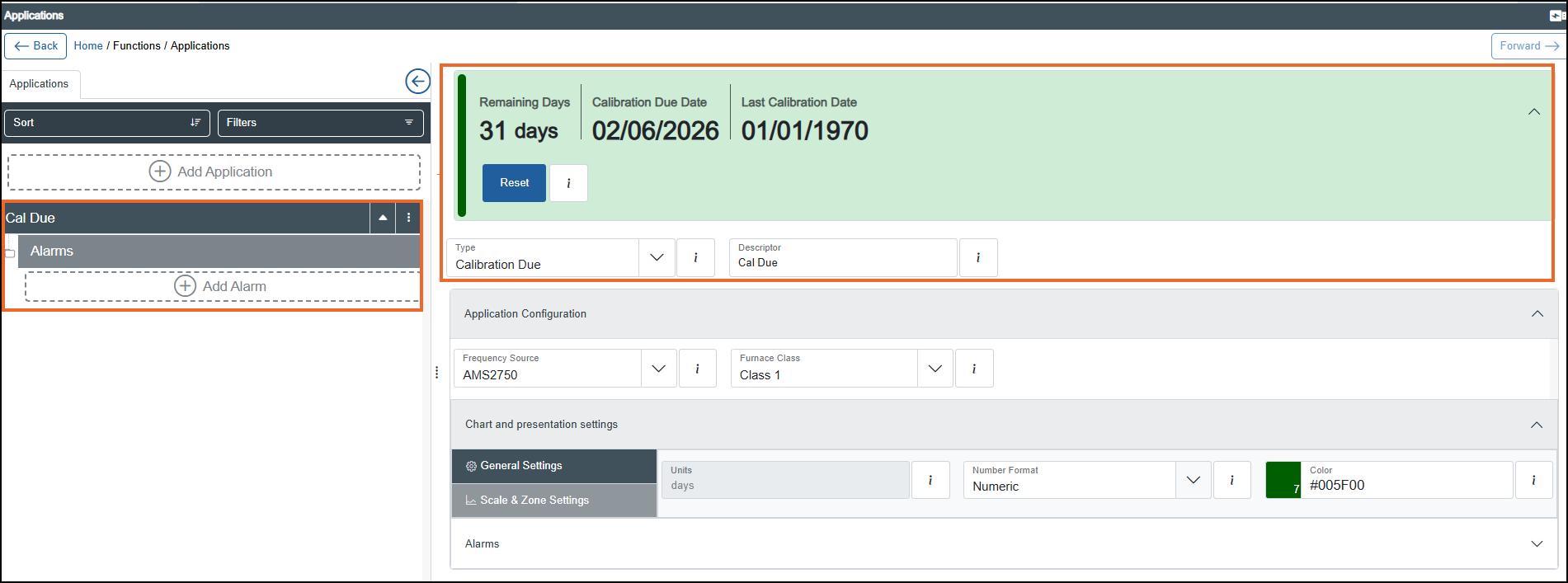
The Operator panel displays the following live calibration countdown details:
-
Remaining Days - Number of days remaining until the next calibration is due.
Note - A negative value indicates that the number of days is overdue. -
Calibration Due Date - The date when the next calibration is due, calculated using the configured calibration frequency.
-
Last Calibration Date - The date of the most recently recorded calibration. Displays NO DATA if no calibration is recorded.
The following option is available to manage monitoring:
-
Reset - Select to re-initialize Remaining Days, update Last Calibration Date and recalculate the next Calibration Due Date based on the configured calibration frequency source. Related alarms automatically update to match the new schedule.
Note - You can only access this function if you have the Can reset Applications permission. If you need to access this function and do not have the permission, please contact your system administrator.Tip - Reset is recommended to be used once a calibration is performed, so the countdown and dates reflect the new cycle. See Calibrating I/O Modules for details on calibrating I/O modules.
Channel MKT
A Channel Mean Kinetic Temperature (MKT ) Application channel calculates the isothermal temperature that represents the equivalent thermal impact of a time-temperature distribution. It continuously converts a channel’s temperature history into a single Mean Kinetic Temperature value over a defined rolling time window. Channels without a valid value are ignored, see Criteria for a Valid Value for details.
The Operator panel displays the live MKT value and lets you reset the calculation:
-
Reset - Select to restart the MKT calculation. The behavior differs based on the input type:
Note - You can only access this function if you have the Can reset Applications permission. If you need to access this function and do not have the permission, please contact your system administrator.-
Numeric constant input - Clears the history and restarts the calculation. However, because the input stays fixed, the MKT quickly returns to the constant temperature and remains flat.
For example, if the input is held constant at 25 °C, the MKT output sets to 0 °C with status NO DATA and then, as new samples are acquired, the value quickly returns to a steady 25 °C because every sample is identical.
-
Channel input (for example, thermocouple PV or scaled analog input) - Clears the accumulated temperature data and starts a new MKT window from the current process temperature. After reset, MKT starts near the current PV and then changes over time as the channel temperature rises or falls.
For example, if the input readings change sequentially from 20 °C, to 40 °C, to 50 °C and then to 30 °C, the output calculation starts near the lowest temperature (20 °C) and as the higher temperatures (40 °C and 50 °C) are added, they have a disproportionally larger influence on the result than cooler temperatures, therefore the running MKT doesn't jump immediately to the final value but gradually rises as the warmer samples accumulate:
-
Sample 1: 20 °C → MKT ≈ 20 °C
-
Sample 2: 40 °C → MKT increases
-
Sample 3: 50 °C → MKT increases further
-
Sample 4: 30 °C → MKT settles to final value
-
-
F-Value
An F-Value Application channel outputs a single analog value that represents the cumulative sterilization effect, expressed as the equivalent time in minutes at the sterilization temperature. The calculation accounts for the entire temperature profile including periods below, at and above the sterilization temperature.
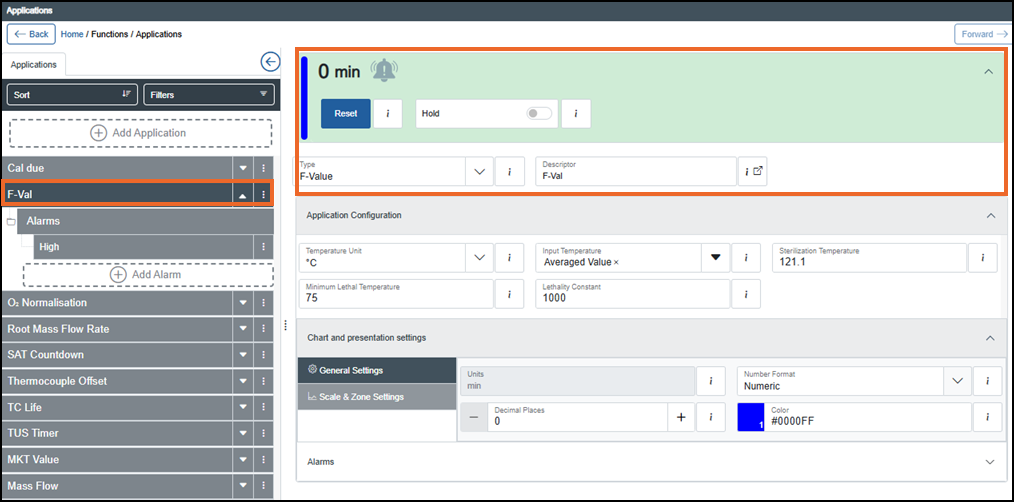
The Operator panel displays the live F-Value and lets you reset/hold the calculation:
-
Reset - Select to reset the F-Value to '0'. The output calculation restarts.
For example, when F‑Value has reached 8.5 minutes and Reset is selected, the output immediately returns to 0.0 minutes. The F-Value then starts accumulating again from '0' based on the measured process temperature and its calculated lethality.
Note - You can only access this function if you have the Can reset Applications permission. If you need to access this function and do not have the permission, please contact your system administrator. -
Hold - Off
 by default, the calculation continues while Hold is Off. Change to On
  to hold the F-Value calculation and retain the last updated value and status.
For example, when the F‑Value is activated (Hold is On
) at an F-Value of 6.2 minutes, the output is held at 6.2 minutes and the calculation stops updating and is suspended. When Hold is Off , the calculation resumes from the held value (6.2 minutes) and continues accumulating according to the measured temperature profile.Note - You can only access this function if you have the Can hold Applications permission. If you need to access this function and do not have the permission, please contact your system administrator.Note - Reset has priority over Hold. When Reset and Hold are both enabled, Reset has priority. The F-Value is reset to zero, regardless of the Hold state.
Group MKT
A Group Mean Kinetic Temperature (MKT) Application channel outputs a single equivalent isothermal temperature for a selected group of channels, corresponding to the kinetic effects of the measured temperature distribution. Channels without a valid value are ignored, see Criteria for a Valid Value for details.
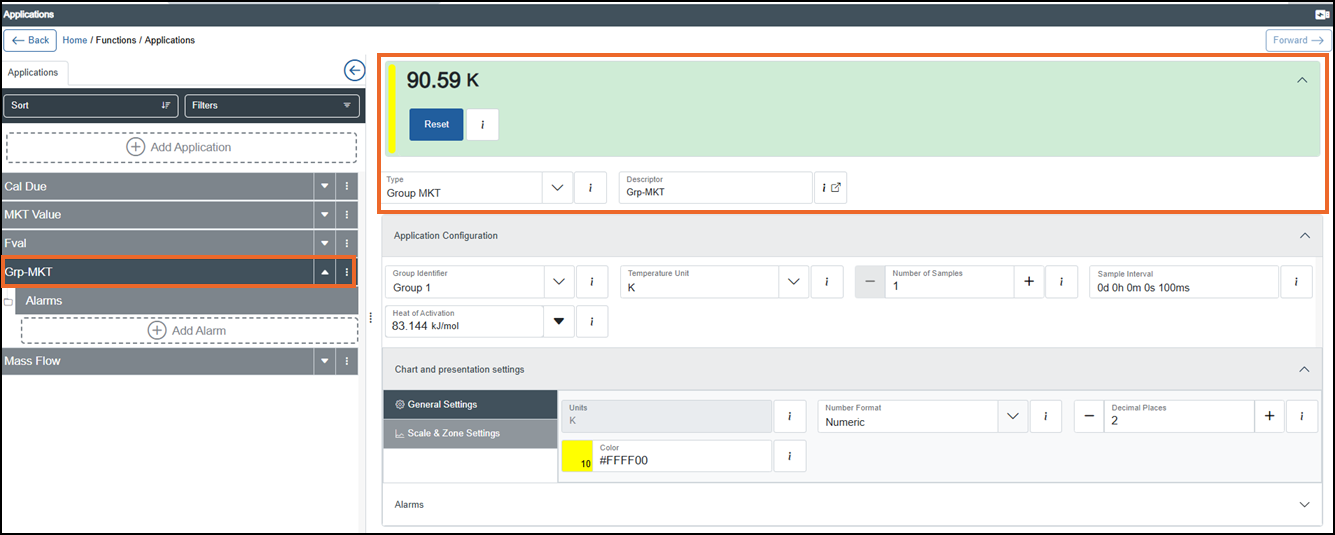
The Operator panel displays the live Group MKT value and lets you reset the calculation:
-
Reset - Select to restart the Group MKT calculation. During and immediately after a reset, the Group MKT output is set to '0' and the status is NO DATA until sufficient valid input data is available. Reset affects only the Group MKT channel and does not reset any individual in the group. Once valid input values are received, the Group MKT calculation restarts using the current group inputs. The behavior differs based on the input type:
Note - You can only access this function if you have the Can reset Applications permission. If you need to access this function and do not have the permission, please contact your system administrator.-
Stable inputs - If all valid channels in the group are at a constant temperature, Reset clears the accumulated calculation history. The Group MKT output is set to '0' with a status of NO DATA until new samples are acquired. As identical samples are collected, the Group MKT quickly returns to the same steady temperature.
For example, if all valid group channels remain stable at 25 °C, the Group MKT output is set to 0 °C with a status of NO DATA following a reset. As new identical samples are acquired, the Group MKT quickly converges back to 25 °C.
-
Changing inputs - If group channel temperatures change over time, Reset clears the previous temperature history and starts a new Group MKT calculation. The output is set to '0' with a status of NO DATA until new samples are acquired. As additional samples are collected, the Group MKT updates to reflect the new temperature profile, rising or falling according to the measured group temperatures.
For example, if the group temperature changes from 20 °C, to 40 °C, to 50 °C, and then to 30 °C, the Group MKT initially remains close to lower temperature values. As additional higher temperature samples are acquired, the calculated Group MKT increases, reflecting their greater kinetic effect.
Related topics - Configuring a Group MKT Application Channel. -
SAT Due
A System Accuracy Test (SAT) Due Application channel determines when a SAT is due by counting down from a configurable interval, based on Aerospace Material Specification (AMS) 2750 requirements or a user-defined custom value. The required interval between SATs depends on the furnace class and the minimum instrumentation type you are using.
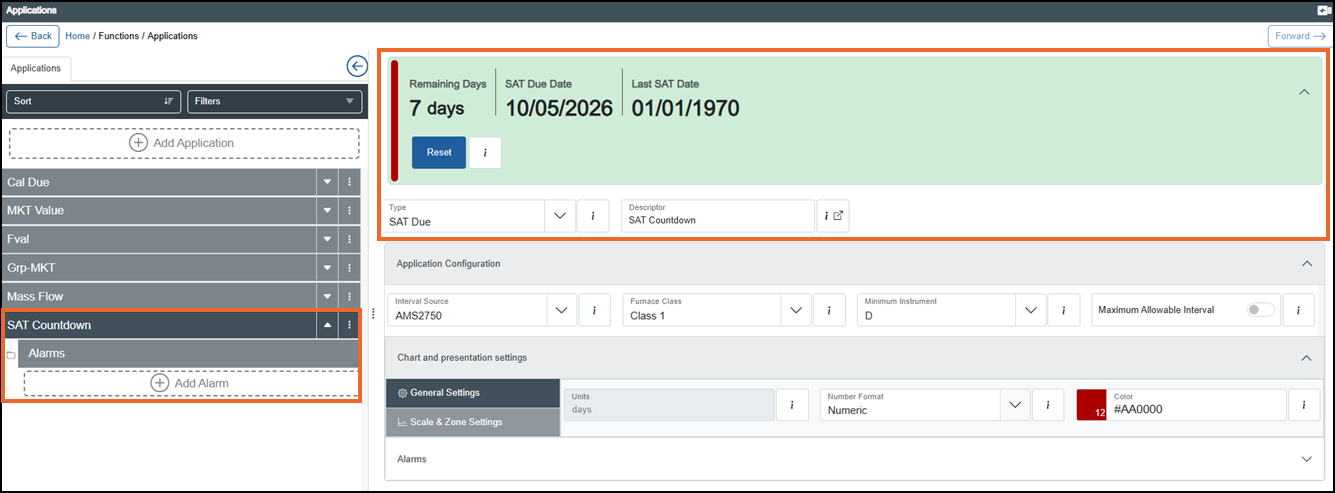
The Operator panel displays the following live SAT countdown details:
-
Remaining Days - Number of days until the next SAT is due.
Note - A negative value indicates that the SAT is overdue. -
SAT Due Date - The date when the next SAT is due, calculated using the configured SAT interval.
-
Last SAT Date - The date of the most recently recorded SAT. Displays NO DATA if no SAT has been recorded .
The following option is available to manage monitoring:
-
Reset - Select to restart the SAT interval countdown. The Remaining Days value is reset to the configured SAT interval, the Last SAT Date is updated to the current date and the next SAT Due Date is recalculated. Any alarms based on the due date or remaining days are updated accordingly.
Note - You can only access this function if you have the Can reset Applications permission. If you need to access this function and do not have the permission, please contact your system administrator.Tip - Select Reset immediately after completing a SAT to restore Remaining Days to the full interval and record the current date as the last SAT date.
Thermocouple Life
A Thermocouple Life Application channel monitors and calculates the remaining allowable uses and estimated remaining service life (in days) of a thermocouple in accordance with the requirements of the latest revision of the AMS2750, see Aerospace Material Specification (AMS) 2750 for details.
The channel tracks thermocouple usage history and temperature exposure, applying life-consumption rules based on the highest temperature reached and the applicable thermocouple classification. From this information, it continuously calculates the remaining allowable uses and the estimated remaining service life, and indicates when the thermocouple has reached its defined end of life. Life consumption is updated only when qualifying temperature exposure or other AMS2750-defined life-limiting conditions occur.
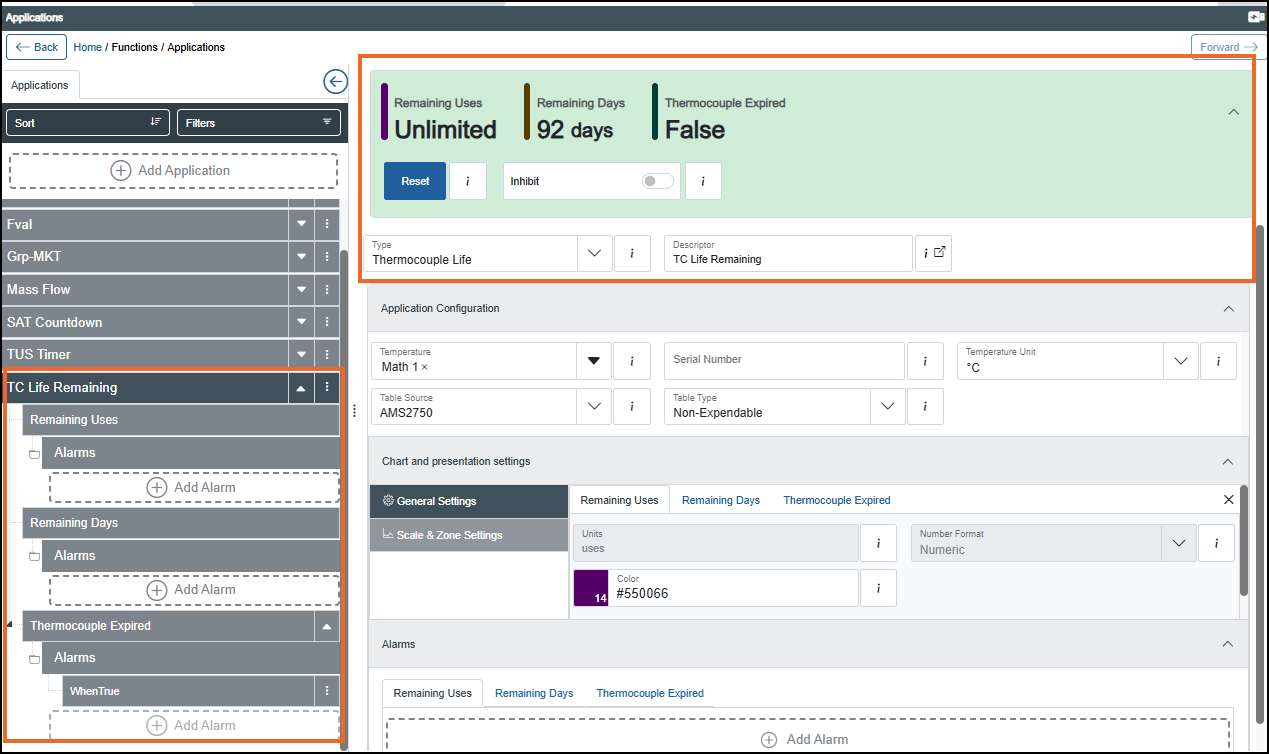
The Operator panel displays the following live details that update with actual thermocouple usage and elapsed time:
-
Remaining Days - The remaining service life for the current thermocouple, expressed in days.
-
Remaining Uses - The number of allowable uses remaining for the current thermocouple, calculated from the maximum permitted uses and the uses already consumed.
-
Thermocouple Expired - Displays True to indicate when the current thermocouple has reached or exceeded its configured end-of-life limit, otherwise displays False.
The following options are available to manage monitoring:
-
Reset - Select to reset the Thermocouple Life, for example, after installing a new thermocouple. All life counters return to their initial state including resetting the use count to '0' and setting a new start date.
Note - You can only access this function if you have the Can reset Applications permission. If you need to access this function and do not have the permission, please contact your system administrator. -
Inhibit - Off by default. While Inhibit is Off, thermocouple temperature exposure and usage are monitored and accumulated. . Change to On
to suspend life accumulation and prevent additional usage being recorded.Note - You can only access this function if you have the Can inhibit permission. If you need to access this function and do not have the permission, please contact your system administrator.Note - Thermocouple Life calculations should be inhibited (On) when the thermocouple is not being thermally stressed, for example, during calibration activities. This prevents false usage and life consumption from being recorded. See Calibrating I/O Modules for further details.Tip - A separate 'Inhibited Too Long' alarm can be raised if a Thermocouple Life function remains inhibited beyond a configured on‑delay time, for example, the inhibition was not removed after calibration or other maintenance activities. See Configuring an Alarm for further details.
TUS Due
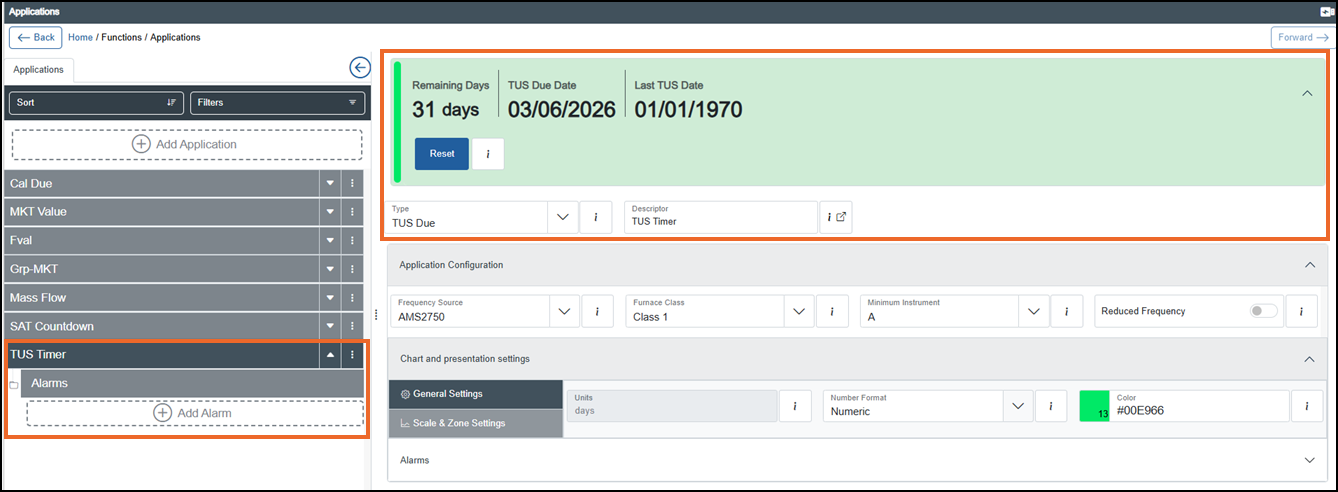
A Temperature Uniformity Survey (TUS) Due Application channel indicates when a TUS is due by counting down the remaining days from a preset interval as defined by the Aerospace Material Specification (AMS) 2750 standard or a user-defined custom value. The required survey frequency depends on the furnace class and minimum instrumentation type being used.
The Operator panel displays the following live TUS countdown details:
-
Remaining Days - Number of days remaining until the next TUS is due. A negative value indicates that the TUS is overdue.
-
TUS Due Date - The next date on which the next TUS is due, calculated using the configured TUS frequency.
-
Last TUS Date - The date of the most recently recorded TUS. Displays NO DATA if no TUS has been recorded.
The following option is available to manage monitoring:
-
Reset - Select to re-initialize Remaining Days, update Last TUS Date and recalculate the next TUS Due Date based on the configured TUS frequency. Related alarms are then updated to match the new schedule.
Note - You can only access this function if you have the Can reset Applications permission. If you need to access this function and do not have the permission, please contact your system administrator.Tip - Select Reset immediately after completing a TUS to record the current date of the Last TUS Date and restart the Remaining Days countdown from the full configured interval.
Last update - June 2026